
ou open your website, wait for the main image to appear, and start wondering whether potential customers are waiting too. Then you run a speed test and get a low mobile score, with a list of technical suggestions that are difficult to interpret.
If you’re asking, “Why is Squarespace so slow?”, start by identifying what is actually taking time to load. Large images, video players, third-party tools, and unnecessary scripts can all contribute. The right fix depends on which resources are affecting your page.
This guide explains how to investigate a slow Squarespace website, what to improve first, and how to check whether those changes are helping.
Is Your Squarespace Website Slow, or Just the Editor?
Before changing your design, open the published website outside your editing session. Test it on your phone as well as your computer.
If the editor feels sluggish but the public page opens normally, treat that as a separate problem. Try another browser, check whether extensions are interfering, and compare a different connection before rebuilding anything.
If the public website has suddenly become slow across several pages, review recent changes and check the Squarespace service status page. A problem that began immediately after adding a widget deserves a different investigation from a homepage that has always loaded slowly.
Be specific about the symptom. Does the image appear late? Does the menu respond slowly after the page appears? Or does the layout jump as content loads? Each points toward a different kind of performance issue.
How to Test Your Squarespace Website’s Load Speed
Start with Google PageSpeed Insights. Enter a published page URL and review both the mobile and desktop results.
Test your homepage, an important service page, and a page that feels particularly slow. One score does not describe your entire website.
PageSpeed Insights combines a simulated lab test with real-user data where enough information is available. Lab results help diagnose issues; field data describes visitors’ experiences over a rolling 28-day period. A missing field-data report is not automatically a failure. Google explains the difference here.
Look Beyond the Overall Score
The Core Web Vitals focus on three aspects of the experience:
Largest Contentful Paint (LCP): How quickly the largest visible image or text block appears. Aim for 2.5 seconds or less.
Interaction to Next Paint (INP): How quickly the page responds visually to interactions. Aim for 200 milliseconds or less.
Cumulative Layout Shift (CLS): How much content moves unexpectedly. Aim for 0.1 or less.
These are experience metrics, not interchangeable measures of total page loading time. Google’s Core Web Vitals guidance explains the targets.
Save the report before making changes. You need a baseline to compare against, not just a red or green number to react to.
1. Resize and Compress Images Before Uploading
If you notice Squarespace images loading slowly, start with the largest files on the affected page. Check the hero image, gallery photographs, and any oversized graphics.
Image dimensions and file size are different. Dimensions describe the width and height in pixels; file size describes how much data needs to transfer. A photograph can have suitable dimensions and still be unnecessarily heavy.
Squarespace recommends keeping images below 500 KB and generally between 1,500 and 2,500 pixels wide in its page-size guidance. Treat this as a starting point: a small thumbnail and a wide banner have different requirements.
Resize your original, compress it, and compare the result at its intended display size before replacing the live image. Keep the original file so you can re-export it if the compressed version looks soft.
For guidance on different image placements, follow my Squarespace image sizes guide.
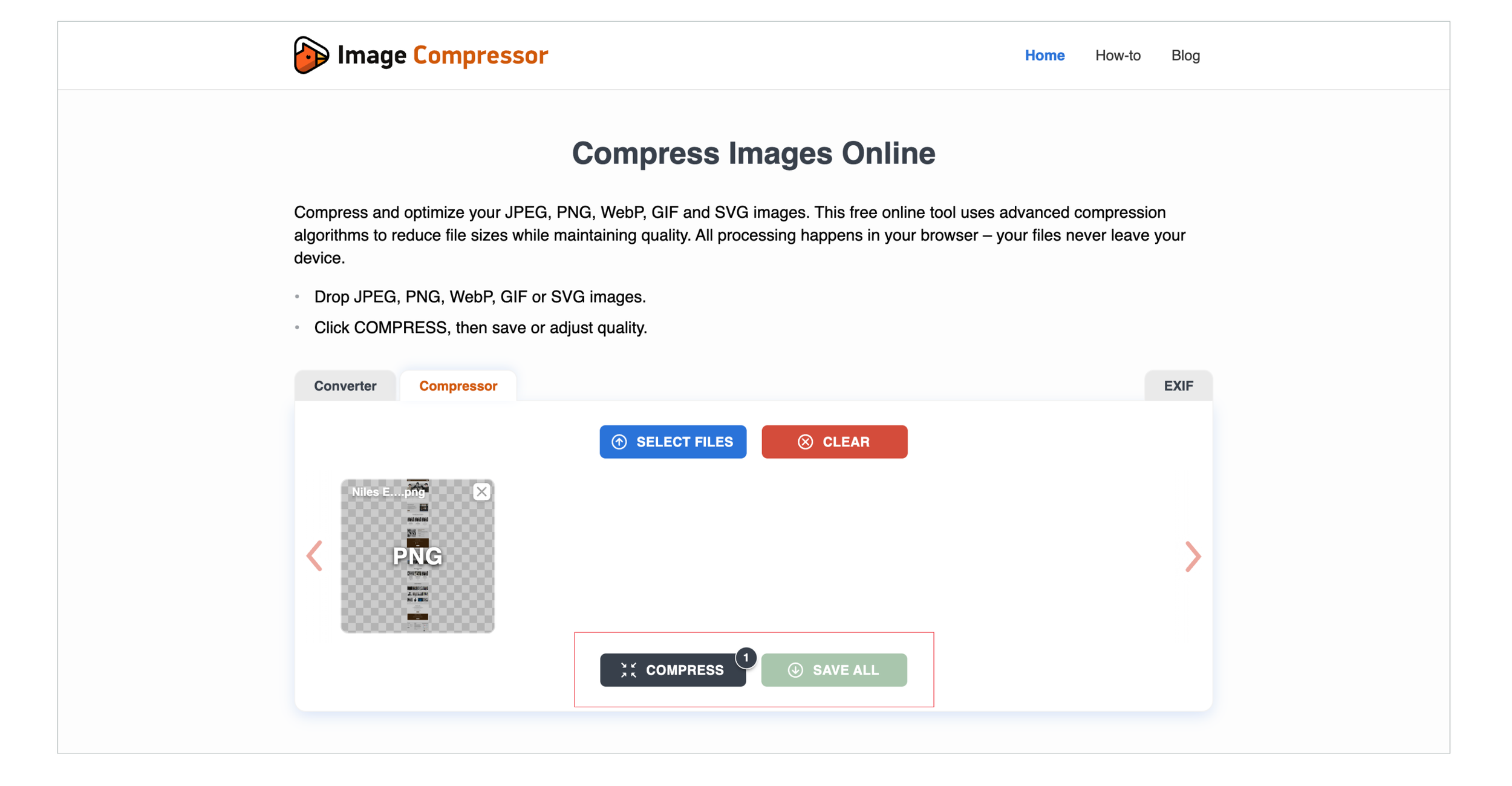
Check WebP Delivery Too
Squarespace’s current documentation says it automatically displays images in WebP unless that option has been disabled in Image Settings. Check that setting before adding an image-conversion tool. The same Squarespace guide covers this option.
2. Give Your First Section Less Work to Do
A homepage that opens with a slideshow, background video, animated heading, and several widgets asks the browser to handle a lot at once.
Consider what visitors actually need first: your business name, a clear explanation of your service, a relevant visual, and a useful next step.
If PageSpeed identifies the main image as the LCP element, investigate its file size and how early it is requested. Adding lazy loading to that first-screen image can delay the content visitors are waiting for. Google specifically advises against lazy loading the LCP image in its LCP optimization guide.
For a practical design test, compare your current hero with a simpler static version. Keep the same message and call to action so you can assess the effect of the visual changes.
Avoid adding a blanket loading script to every image. Elements visible immediately and those further down the page do not necessarily need the same treatment.
3. Review Videos and Embedded Players
A video may help explain your service or demonstrate your work. Several players on the same page, however, deserve closer attention.
Embedding a YouTube video does not make it free of performance costs. The player can still load scripts and other resources before someone presses play.
Where appropriate, use a preview image that loads the player only after interaction, or link to a separate video page. A custom thumbnail alone does not prove that the player is deferred; the implementation needs to support that behaviour. Google’s video lazy-loading guide explains these options.
My guide to embedding YouTube videos in Squarespace covers the setup. Once your video is added, test the page again rather than assuming the embedding method has solved loading issues.
Keep the videos that help visitors make a decision. Move supporting content elsewhere when it interrupts the main purpose of the page.
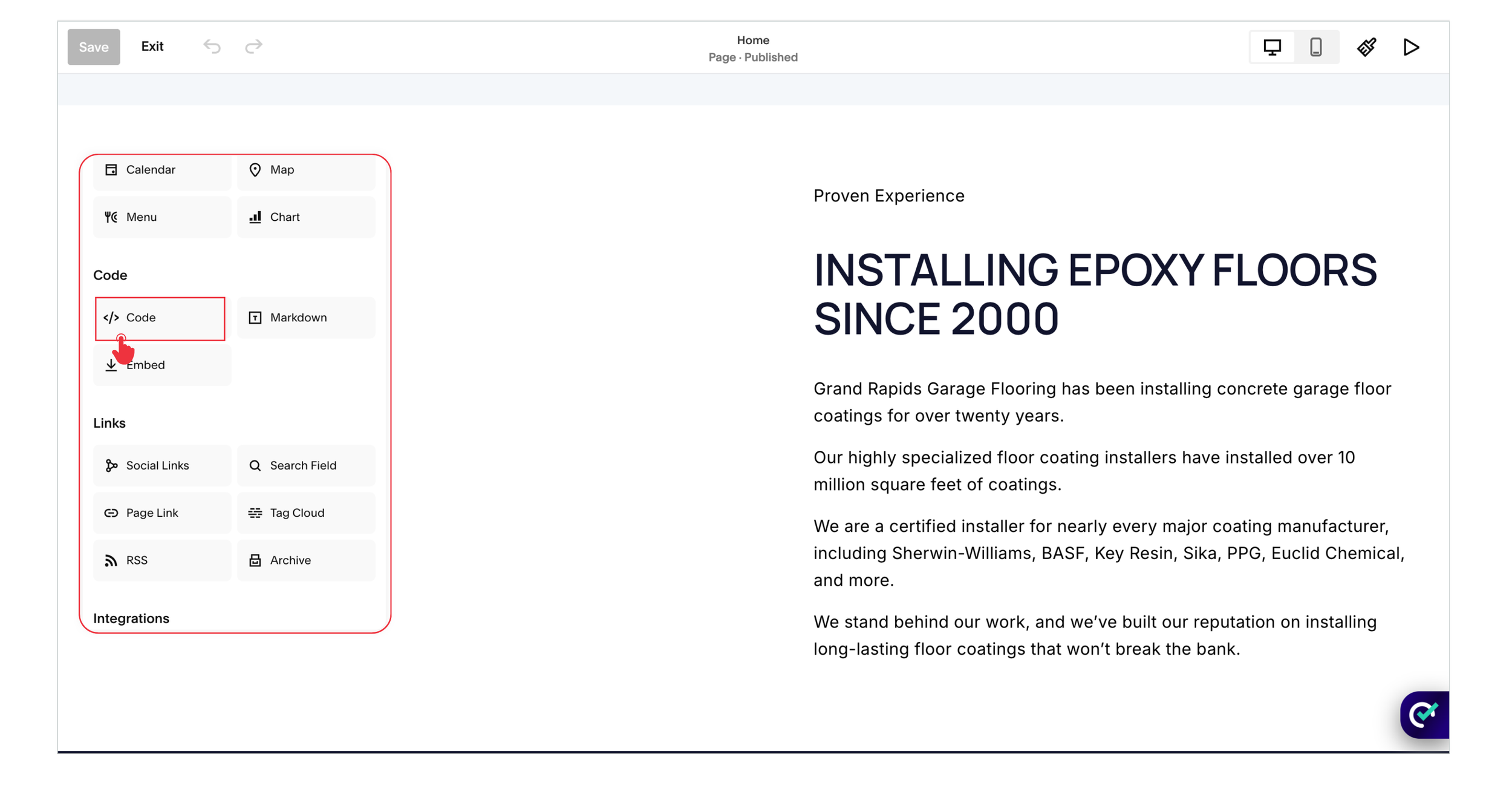
4. Remove Unused Widgets and Duplicate Tracking
Chat tools, social feeds, review widgets, scheduling embeds, and tracking tags can add useful features. They can also add network requests and browser processing.
Make an inventory of the tools installed on your website. For each one, ask what it does, where it is needed, and whether anyone still uses it.
Look for accidental duplication. For example, the same tracking setup may have been added through more than one installation method. Confirm what is running before removing anything.
Where an integration allows it, load a page-specific tool only where visitors need it. A scheduler may belong on a booking page without being embedded throughout the website.
Google recommends removing third-party scripts that provide no clear value or improving how necessary scripts load. Follow the provider’s instructions when adjusting loading behaviour; scripts may depend on a particular order. See Google’s third-party JavaScript guidance.
5. Keep Fonts and Design Effects Intentional
A consistent type system can look polished without using several font families and many different weights.
Review which fonts the site actually uses. Remove obsolete custom font declarations and unnecessary variants after checking their role in the design. Font loading can delay text rendering, so both file selection and loading behaviour matter. Google’s web font guidance explains why.
If you need to review your setup, use my guide to adding fonts to Squarespace to locate the custom styling involved.
Apply the same judgment to animation. A small visual effect and a large JavaScript animation library have very different costs. Test the actual implementation instead of assuming all custom styling is a problem.
Save a copy of your code before making changes, and remove one identified item at a time. This makes it easier to restore a feature if something breaks.
6. Simplify Pages That Try to Do Everything
A homepage does not need to contain every project, every testimonial, and the full details of every service.
Choose enough content to explain your offer and build trust, then link to dedicated pages for deeper information. A visitor interested in one service can explore it without loading an entire portfolio first.
Focus on resource-heavy elements rather than counting paragraphs. A useful text section may add far less work than a single complex embed.
For example, you might replace several homepage project galleries with a short selection of your strongest work and links to individual case studies. That gives visitors a clearer route through your content while reducing what the homepage needs to display.
Preserve information people need to decide whether to contact you. Simplification should make the website more useful, not leave basic questions unanswered.
7. Clean Up Unnecessary Redirect Hops
A redirect sends a visitor from one URL to another. It can be necessary after a page moves, but avoid making visitors pass through several old addresses before reaching the destination.
Update internal links so they point directly to the current page. Keep necessary redirects for old links that people or search engines may still follow.
This is especially worth reviewing after a website migration or a change to your URL structure. My WordPress to Squarespace migration guide provides related planning context.
Fix broken links too, but understand the distinction: repairing a broken navigation link helps people reach the right content; it is not a substitute for addressing a heavy image or a slow script.
8. Retest Performance and the Customer Journey
Run the same page through PageSpeed Insights after each meaningful change. Repeat the test a few times using comparable settings, because individual lab results can vary.
Record what changed and whether the relevant metric improved. If the issue was a late hero image, check its loading behaviour. If buttons felt unresponsive, test those interactions.
Then use the website on your phone. Open the menu, follow a service link, and submit a test enquiry. A performance improvement is incomplete if it breaks a form or removes an important booking feature.
If you need to rebuild or check the enquiry route, refer to my guide to adding a contact form in Squarespace.
Remember that real-user reports take time to reflect changes. Compare immediate lab results first and review field data later as the reporting window updates.

Need Help with Your Squarespace Website?
Book a free kick-off call to discuss your project requirements in detail. Whether you're launching a new Squarespace website, redesigning an existing one, or looking to improve functionality and user experience, we'll help you explore the best options for your goals.
What Should You Fix First?
Use the symptom and your test report to choose the next step.
| What You Notice | What to Investigate | First Practical Action |
|---|---|---|
| The main photograph appears late | Image size and loading priority | Optimize the file and review the reported LCP element |
| A video-heavy page starts slowly | Player resources and loading behaviour | Test fewer players or an interaction-loaded option |
| The page appears but responds slowly | Script processing and third-party tools | Review unused or duplicated integrations |
| Text appears late or changes noticeably | Font files and loading behaviour | Review font families, variants, and custom declarations |
| One page is much slower than the others | Its unique media and embeds | Compare its resources with a simpler page |
| Visitors pass through old URLs | Redirect chains and outdated internal links | Link directly to the current destination |
| Only the editing interface feels slow | Browser, connection, and editor environment | Test the public site separately |
Does a Slow Squarespace Website Affect SEO?
Performance is part of the page experience, and Google uses Core Web Vitals in its ranking systems. However, a good performance result does not guarantee a top position. Relevant content and the wider quality of your website still matter. Google explains Core Web Vitals and Search here.
For a business website, the practical benefit is straightforward: people should be able to access your content and contact you without unnecessary delays.
Treat speed improvements as one part of your broader Squarespace SEO strategy, alongside useful content, clear site structure, and relevant internal links.
Frequently Asked Questions
-
Squarespace does not list SVG among the supported formats for standard image uploads. Its supported image formats include JPG, PNG, GIF, and WebP. See Squarespace’s image requirements.
For most business websites, choose the format according to the image:
JPG: A practical option for photographs where transparency is unnecessary.
PNG: Useful for graphics, text-heavy images, and transparent backgrounds.
WebP: Supports efficient compression and transparency, making it useful for many website images.
PNG and JPG are pixel-based formats, so neither stays perfectly sharp at every size. Export the image at suitable dimensions and check its appearance after compression.
If you are experiencing Squarespace images loading slowly, changing formats is only one part of the solution. File size, dimensions, and the number of images on the page also matter. My Squarespace image sizes guide explains how to prepare your visuals for different placements.
-
Squarespace websites can provide a fast, comfortable browsing experience, but performance varies with the content and features on each page. A straightforward service page has different loading demands from a homepage containing several videos, galleries, and interactive widgets.
Common things worth checking include oversized images, embedded video players, and unnecessary third-party tools. Squarespace itself recommends reducing heavy page content and optimizing images in its page-speed guidance.
Start by testing your important pages with PageSpeed Insights, then use the website on a phone. Check how quickly the main content appears and whether visitors can comfortably open the menu, explore your services, and contact you.
A slow Squarespace website does not automatically need a complete redesign. Identifying the specific cause helps you make targeted improvements while keeping the design and features your business needs.
-
No. Squarespace is a hosted website platform, so your website runs on its infrastructure. You cannot move the complete Squarespace website to another hosting provider and continue using it in the same way.
You can keep your domain registered with another provider and connect it to Squarespace. Your domain registration and website hosting are separate services, so transferring the domain is optional.
Hosting is included with both monthly and annual Squarespace website subscriptions while your subscription remains active. The one-year offer associated with eligible annual plans concerns domain registration, not a limit on hosting. Squarespace’s plan details explain this distinction.
If your website loads slowly, focus first on its images, embedded content, and scripts. Buying separate hosting will not improve the performance of a website that remains on Squarespace.
Final Thoughts
A slow Squarespace website needs a clear diagnosis before it needs a redesign. Start with the affected pages, find the resources causing delays, and make changes you can measure.
For most business owners, reviewing images, videos, and third-party tools is a sensible place to begin. Keep the design focused on helping visitors understand your services and take the next step.
Building or improving a Squarespace website? Book a free call with me to discuss your website, its performance, and how I can help create a professional Squarespace experience that supports your business goals.