
How to Fix Broken Links in Squarespace

Broken links send visitors to a page that no longer exists. This often happens after deleting a page, changing its URL or entering the wrong link.
In this guide, you’ll learn:
How to find broken links in Squarespace
The difference between internal and external links
How to update a broken link
When to add a redirect
What Is a Broken Link in Squarespace?
A broken link takes visitors to an unavailable page, often showing a “404 — Page Not Found” message.
Common causes include:
A page was deleted.
Its URL was changed.
The link contains a typing mistake.
An external website removed the linked page.
How to Find Broken Links
You can find broken links by:
Clicking through your website manually
Using a broken link checker
Checking Google Search Console for Not found (404) URLs
Start with your menu, buttons, footer and blog links.
Need Help with Your Squarespace Website?
Book a free kick-off call to discuss your project requirements in detail. Whether you're launching a new Squarespace website, redesigning an existing one, or looking to improve functionality and user experience, we'll help you explore the best options for your goals.
Step 1: Open the Page With the Broken Link
Log in to your Squarespace website.
Open the page containing the broken link.
Click Edit.
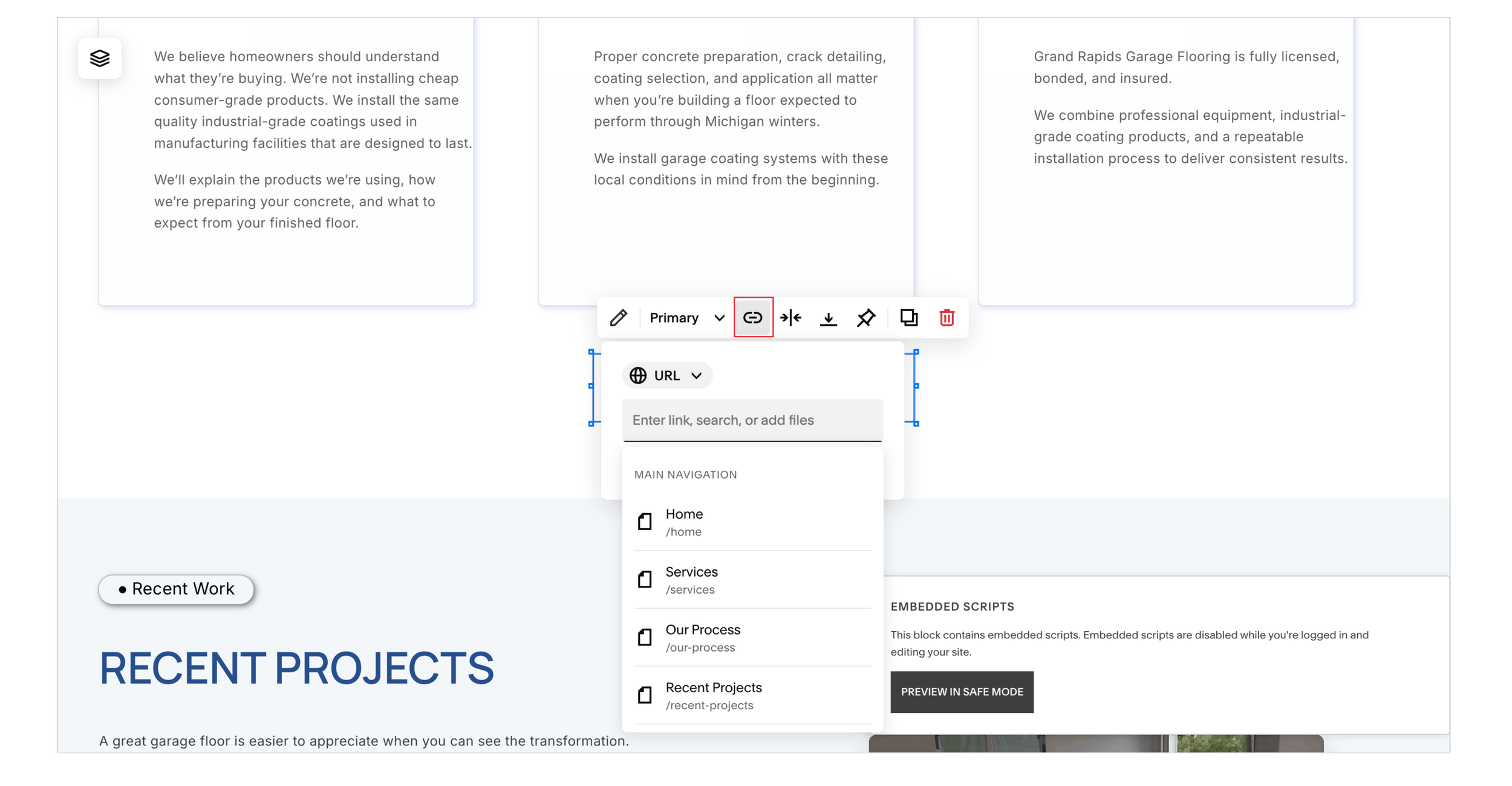
For text links, select the linked text and click the link icon.
For buttons, open the button settings and click its link field.
Step 2: Identify the Link Type
Check where the link should take visitors:
Internal link: A page on your website, such as /services.
External link: A page on another website and often open in a new tab
Open the destination to check whether it still works.
Step 3: Fix or Replace the Link
1. For an Internal Link
Remove the incorrect address.
Search for and select the correct page in the link editor.
Confirm the change and save your page.
For example, if your Services page is now at /services, replace the outdated link with that address.
2. For an External Link
Find the correct page on the other website.
Copy its full address.
Replace the broken link and save.
If the resource no longer exists, link to a useful alternative or remove the link.
Step 4: Add a Redirect if the Page Has Moved
If you changed a page’s URL, a 301 redirect sends visitors from the old address to the new one.
Open Developer Tools in your site settings.
Click URL Mappings.
Add your redirect on a new line: /old-page -> /new-page 301
Replace the example paths with your own.
Click Save.
The old address must no longer serve an active page for the redirect to work.
Choose a relevant replacement page. Avoid redirecting every broken URL to your homepage. If a page was intentionally removed and has no suitable replacement, it can remain a 404.
Step 5: Test the Updated Link
After saving:
Open your published website.
Click the link you updated.
Confirm that the correct page opens.
If you added a redirect, test the old address too.
Repeat this for any other broken links you find.
How to Prevent Broken Links
Update links whenever you change a page URL.
Add a redirect when a page permanently moves.
Check important buttons after editing your website.
Review older blog posts for outdated external links.
For more ways to maintain your website, explore my Squarespace SEO guide.
Frequently Asked Questions
-
Broken links can stop visitors and search engines from reaching useful content. However, a 404 is not automatically a site-wide SEO problem. Prioritise broken links to important pages and old URLs with relevant replacements. For broader improvements, see my Squarespace SEO guide
-
No. You can edit links in Squarespace and use URL Mappings for page redirects. A checking tool may help you find problems, but you do not need a plugin to make these fixes.
-
Check the spelling, mapping format and destination first. An active page at the old path can prevent the redirect. Conflicting mappings can also interfere. Squarespace URL Mappings cannot redirect image or file URLs hosted on its CDN; update the links to those assets instead.
-
Check after changing URLs, deleting pages or launching a redesign. A monthly review of your main buttons, navigation and popular posts is a practical routine for a small business website.
Final Thoughts
Working links help people find your services, read your content and contact you without interruption. Start with the links that matter most, fix the destination and test the result.
Building or improving a Squarespace website? Book a free call with me to discuss your website, its performance, and how I can help create a professional Squarespace experience that supports your business goals.


Broken links can interrupt a visitor’s journey. Here’s how to find them, update their destinations and redirect old Squarespace URLs.