How to Migrate From WordPress to Squarespace (2026 Guide)

If you're considering moving your website from WordPress to Squarespace, you're not alone.
Many business owners, consultants, freelancers and service providers start with WordPress because it's flexible and widely used. But over time, maintaining plugins, handling updates, fixing compatibility issues, and managing hosting can become more time-consuming than running the business itself.
That's why more people are choosing Squarespace, an all-in-one website platform that combines hosting, security, design, and built-in marketing tools without requiring constant maintenance.
The good news is that migrating a WordPress site to Squarespace doesn't have to be difficult. With the right process, you can move your content, preserve your SEO, and launch a cleaner, faster website with minimal downtime.
In this guide, I'll show you exactly how to migrate from WordPress to Squarespace step by step, including what transfers automatically, what you'll need to move manually, and how to avoid common SEO mistakes during the migration.
How to Migrate From WordPress to Squarespace (Step-by-Step)
Now let's begin the actual migration.
Step 1: Remove Unnecessary Pages
Before you migrate your WordPress site to Squarespace, take some time to clean up your website.
Delete pages that are outdated, duplicated, or no longer bring value to your business. You can use Google Analytics to identify pages with little or no traffic by going to Behavior → Site Content. If your business is seasonal, compare data over a longer time period for more accurate results.
A cleaner website makes your migration faster and easier.
Step 2: Export Your Content From WordPress
Squarespace includes a built-in importer that lets you transfer most of your website content without copying everything manually.
Go to WordPress → Tools → Export and choose whether you want to export all content or specific pages, posts, or categories. WordPress will download an XML file, which you'll import into Squarespace.
Squarespace can import:
Pages
Blog posts
Authors
Categories and tags
Comments
Attachments
However, it won't import your theme, plugin content, custom styling, image captions, or gallery layouts. These will need to be recreated manually.
Step 3: Import Content to Squarespace
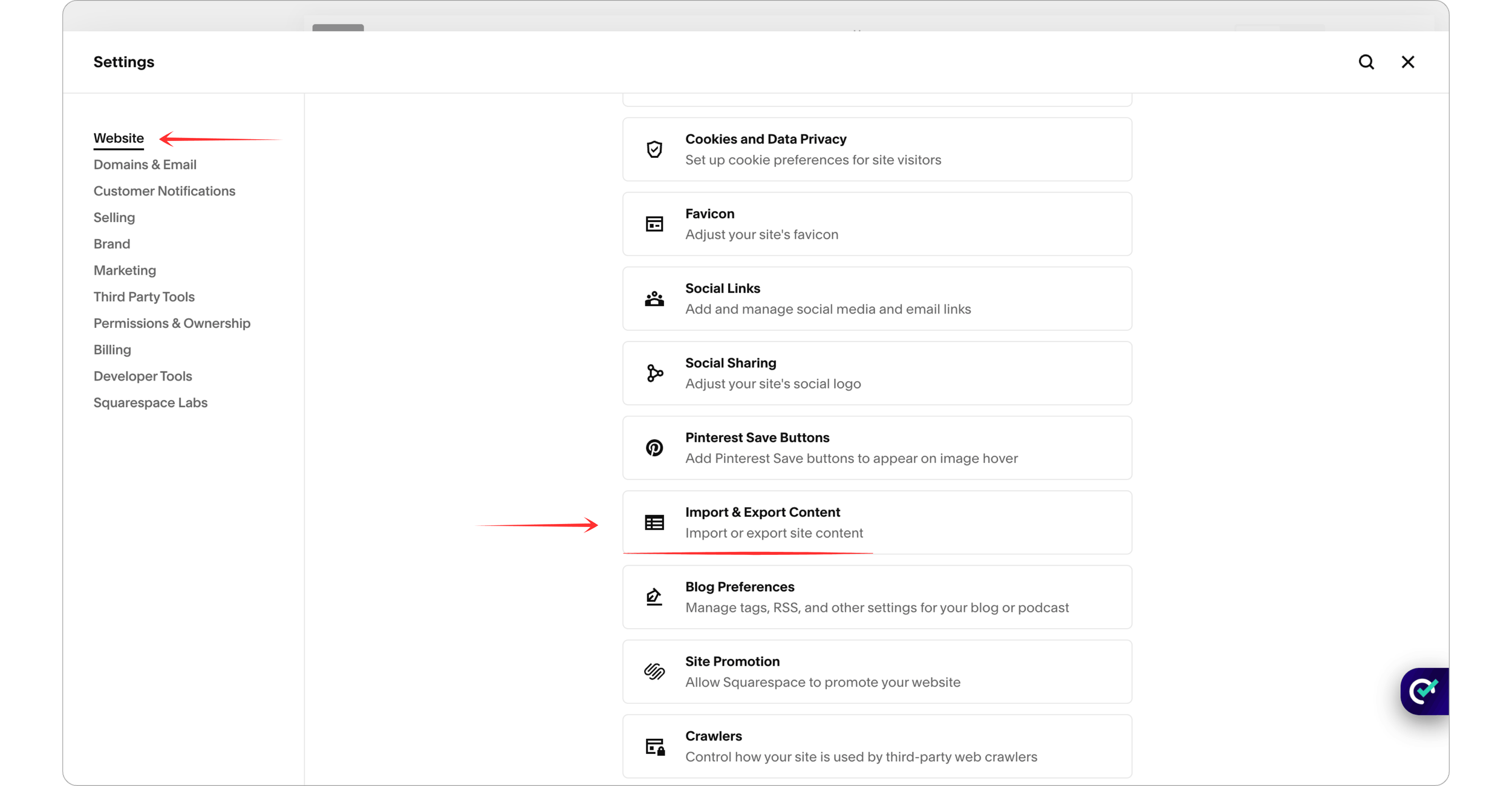
In Squarespace, go to Settings → Advanced → Import/Export → Import.
Select WordPress as your source, upload the XML file, and click Begin Import.
After the import is complete, Squarespace will display a success message. Your imported pages and blog posts will appear in the Not Linked section until you add them to your navigation.
Step 4: Transfer Your SEO Settings
If you used SEO plugins like Yoast SEO or Rank Math in WordPress, that SEO data won't transfer automatically.
Open each page in Squarespace and add your existing:
SEO title
Meta description
Social sharing information (if needed)
You should also review your blog URL format. Go to Settings → Blogging → Post URL Format and keep it as close as possible to your existing WordPress URLs to help maintain your search rankings.
Step 5: Connect or Transfer Your Domain
Once you're happy with your new Squarespace website, it's time to connect your domain.
You have two options:
Connect your existing domain and continue managing it with your current domain provider.
Transfer your domain completely to Squarespace so everything is managed in one place.
Connecting a domain is usually the quicker option, while transferring ownership can take several days depending on your domain provider.
Tip: Make sure your www or non-www version matches your current website to avoid SEO issues.
Step 6: Set Up 301 Redirects
When you switch from WordPress to Squarespace, some page URLs may change. Without redirects, visitors and search engines could end up on 404 error pages.
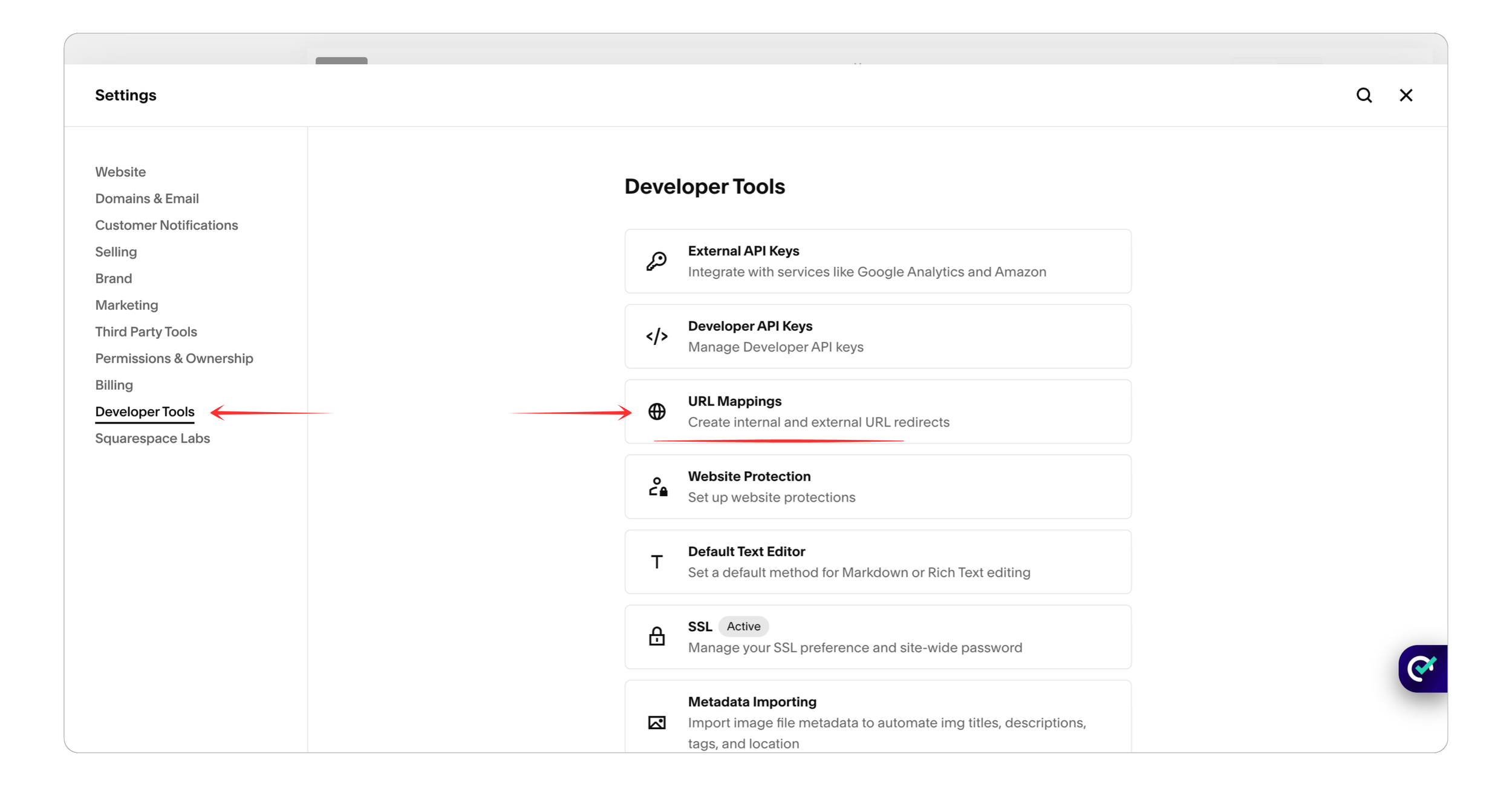
To fix this, create 301 redirects in Squarespace by going to:
Settings → Advanced → URL Mappings
Use this format:
/old-page -> /new-page 301For example:
/services -> /our-services 301This tells search engines that the page has permanently moved and helps preserve your SEO.
Step 7: Check for Broken Links
After launching your Squarespace website, test it for broken links.
A free tool like Dead Link Checker can scan your website and identify any pages that return a 404 error.
Fixing broken links ensures visitors have a smooth experience and helps protect your SEO after migrating from WordPress to Squarespace.
Common Challenges When Migrating From WordPress to Squarespace
Migrating from WordPress to Squarespace is usually straightforward, but there are a few challenges you should be aware of before making the switch. Understanding these issues ahead of time can help you avoid unnecessary problems and ensure a smoother migration.
1. URL Structure Changes
One of the biggest challenges is that WordPress and Squarespace use different URL structures. If your page URLs change after the migration, visitors may land on 404 error pages, and your search engine rankings could be affected.
For example:
WordPress
yourdomain.com/blog-postSquarespace
yourdomain.com/blog/blog-postTo prevent this, create 301 redirects for any pages with changed URLs. Redirects automatically send visitors and search engines from the old URL to the new one, helping preserve your SEO and providing a better user experience.
2. Plugins and Website Features
WordPress offers thousands of plugins for adding extra functionality, such as forms, booking systems, memberships, and advanced SEO tools. Squarespace takes a different approach by including many of these features natively.
Because of this, some WordPress plugins won't transfer during the migration. If your website relies on custom plugins or advanced functionality, you'll need to recreate those features using Squarespace's built-in tools, custom code, or third-party integrations.
Before launching your new website, make a checklist of the features your business depends on to ensure nothing important is missed.
3. Domain Connection and DNS Propagation
After your new Squarespace website is ready, you'll need to connect or transfer your domain. While this process is usually straightforward, it isn't always instant.
DNS changes can take anywhere from a few hours to 48–72 hours to fully propagate worldwide. During this time, some visitors may see your old WordPress website while others see the new Squarespace version.
This is completely normal. Avoid making major changes during the propagation period, and wait until the domain has fully updated before considering the migration complete.
Frequently Asked Questions
-
Yes. Squarespace includes a built-in WordPress importer that can transfer pages, blog posts, categories, tags, comments, and authors. However, themes, plugins, custom layouts, and some media settings will need to be recreated manually.
-
It depends on your needs. WordPress offers greater flexibility and customization, while Squarespace is easier to use and requires far less maintenance. For most businesses, consultants, and service providers, Squarespace provides everything needed without relying on plugins.
-
No. Squarespace is generally much easier for beginners because hosting, security, updates, and design tools are built into the platform. WordPress has a steeper learning curve and often requires managing themes, plugins, and hosting separately.
-
No. Squarespace and WordPress are separate website platforms. You can't run WordPress inside Squarespace, but you can migrate your content from WordPress to Squarespace using Squarespace's import tool.
-
Not if the migration is done correctly. Keeping your page titles, meta descriptions, URL structure, and 301 redirects in place can help preserve your existing search rankings after moving from WordPress to Squarespace.
-
A small website can usually be migrated in a few hours, while larger websites with hundreds of pages or complex functionality may take several days depending on the amount of content and redesign work required.
Final Thoughts
Moving from WordPress to Squarespace may seem overwhelming at first, but the process is actually straightforward when you follow the right steps.
Start by cleaning up your website, export your content, import it into Squarespace, transfer your SEO settings, connect your domain, set up redirects, and test everything before launching.
Once your migration is complete, you'll have a modern website that's easier to manage, secure by default, and built to grow with your business.
If you're planning to migrate your WordPress site to Squarespace but don't want to deal with the technical work, We can help make the transition seamless while preserving your content and SEO.

Need Help with Your Squarespace Website?
Book a free kick-off call to discuss your project requirements in detail. Whether you're launching a new Squarespace website, redesigning an existing one, or looking to improve functionality and user experience, we'll help you explore the best options for your goals.
You May Also Like