
How to Embed YouTube Video on Squarespace

If you are creating videos for YouTube and also want to use them on your website, embedding them on Squarespace can be a smart option.
Instead of uploading a large video file directly to your website, you can host the video on YouTube and display it on your Squarespace site. This can help you avoid adding large video files to your site's own video storage and gives visitors an easy way to watch your content directly from your website.
It can also be useful for business websites, portfolios, blogs, tutorials, testimonials, and service pages where video helps explain your offer or build confidence with potential customers.
I have already covered 4 ways to add videos to a Squarespace website in another guide, so I won't repeat every possible method here. This article focuses specifically on how to embed YouTube video on Squarespace, why you may want to use YouTube, and the simplest way to do it.
Why Use YouTube for Videos on a Squarespace Website?
One of the biggest advantages is that you don't have to upload the original video file directly to Squarespace.
Squarespace currently allows direct video uploads, but video blocks have a 500 MB file-size limit, and every website plan includes 30 minutes of total video storage before additional storage is added through eligible plans.
If you regularly create high-resolution videos, tutorials, interviews, or promotional content, uploading every video directly to your website may not be the most convenient approach.
With YouTube, your video is hosted on YouTube and you simply place the player on your Squarespace page.
There are a few other benefits:
Visitors can watch the video without leaving your website.
YouTube gives your videos another place to be discovered.
You can build credibility by showing educational videos, testimonials, demonstrations, or behind-the-scenes content.
For a business website, I particularly like using video when it helps answer a question or removes uncertainty before someone contacts you.
For example, a web designer could embed a short website walkthrough on a service page, while a photographer could show a behind-the-scenes video on a portfolio page.
How to Embed YouTube Video on Squarespace
There are two simple ways to add a YouTube video in Squarespace.
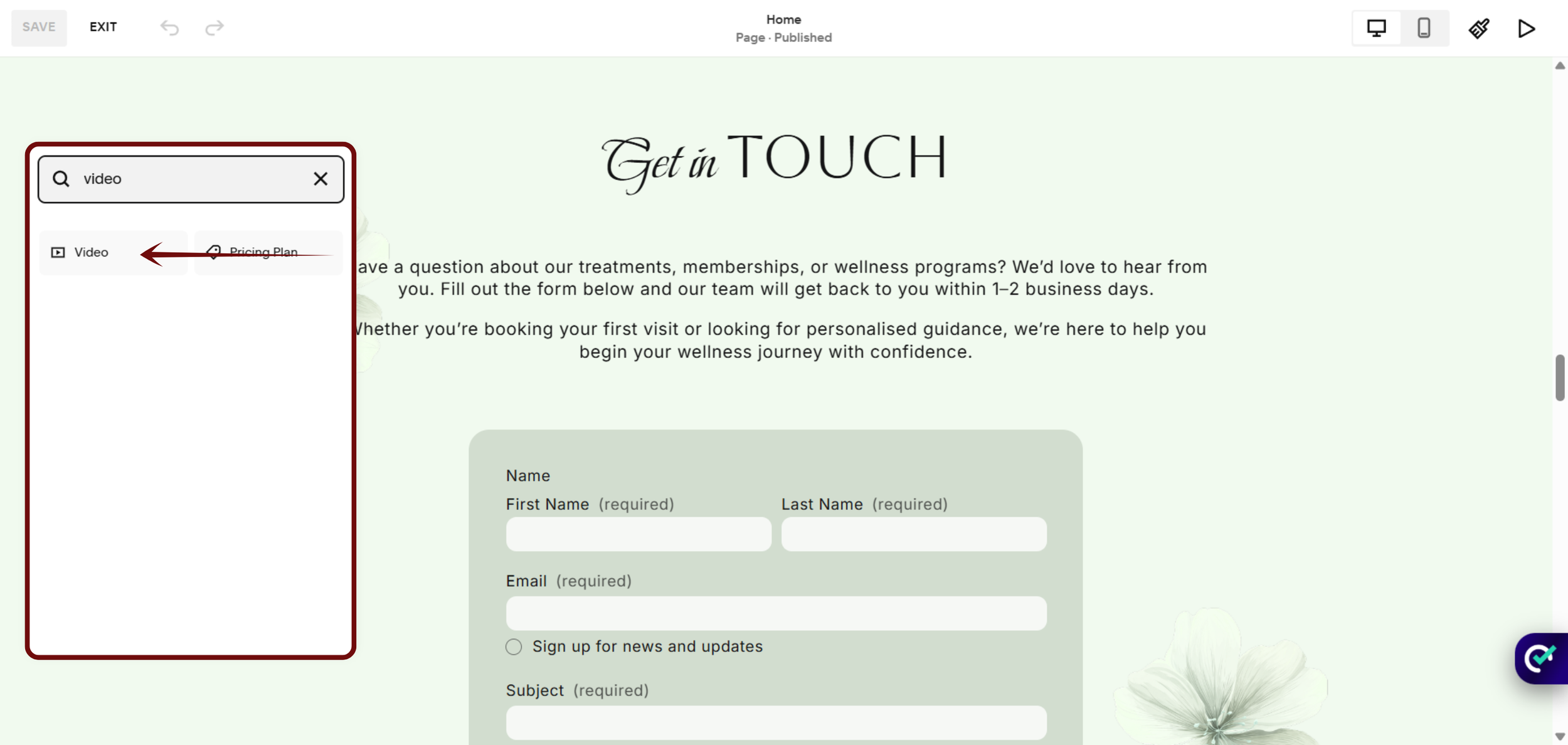
For most YouTube videos, Squarespace's Video Block is the easiest option. You can add a Video Block and paste the YouTube URL directly into it.
If you need more control over the embedded player, you can use an Embed Block and paste YouTube's embed code.

Need Help with Your Squarespace Website?
Book a free kick-off call to discuss your project requirements in detail. Whether you're launching a new Squarespace website, redesigning an existing one, or looking to improve functionality and user experience, we'll help you explore the best options for your goals.
Method 1: Add a YouTube Video Using a Video Block
This is the easiest option if you simply want to display a YouTube video.
Open the Squarespace page where you want the video.
Click Edit.
Click Add Block and select Video.
Choose Add from link.
Paste your YouTube video URL.
Save your changes and preview the page.
Squarespace currently supports YouTube and Vimeo videos directly through the Video Block.
For most business websites, this is the method I would recommend because it is simple and doesn't require editing HTML.
Method 2: Embed a YouTube Video Using an Embed Block
If you want to use YouTube's actual embed code or need more advanced playback options, you can use an Embed Block.
YouTube's official process is:
YouTube → Share → Embed → Copy the HTML code.
Then, in Squarespace:
Open the page and click Edit.
Add an Embed Block to your section.
Paste the YouTube iframe code.
Adjust the width and height if necessary.
Save and preview the page.
YouTube officially supports embedding videos on websites by copying the HTML generated through Share → Embed.
If you are using the iframe method, a width of around 980px and height of 560px can work well for a large desktop video area, but I recommend checking the result on mobile rather than relying on fixed dimensions alone.

Should You Use a Video Block or Embed Block?
For most Squarespace websites, I would start with the Video Block.
Use an Embed Block when you specifically need additional control over the YouTube player or other advanced embed settings. Squarespace itself recommends the Video Block for most YouTube and Vimeo videos, while Embed Blocks are better suited to advanced display settings or other external content.
If your goal is simply to embed YouTube video on Squarespace, there is no need to make the process more complicated than it needs to be.
FAQs
-
Yes. Squarespace supports embedded content, including YouTube videos. For YouTube and Vimeo, Squarespace provides a dedicated Video Block where you can add the video URL directly.
Squarespace also provides an Embed Block for adding external content using embed code.
-
You can upload videos to Squarespace, but there are limits.
Squarespace's current documentation states that video blocks have a 500 MB maximum file size, while each website plan includes 30 minutes of video storage before additional storage is available through eligible plans.
If your videos are large or you publish videos regularly, hosting them on YouTube and embedding them on your Squarespace website can be a more convenient approach.
-
Squarespace does not natively allow you to upload videos directly into the main product image gallery.
However, you can easily add a video using the built-in "Additional Info" section on the product page, or use custom code/plugins if you need it integrated with your product photos
-
No. A private YouTube video can only be viewed by people who have been specifically granted access. If you want to display a video on your website without making it publicly searchable, an Unlisted YouTube video is usually a better option.
You can change your video's visibility to Unlisted in YouTube Studio, then copy the video URL and embed it on your Squarespace website.
Final Thoughts
Embedding a YouTube video in Squarespace is relatively simple, and in most cases, you don't need custom code.
For a basic YouTube video, use a Video Block and paste the YouTube URL. If you need more control, use an Embed Block with YouTube's iframe code.
The more important question is not just “How do I embed a YouTube video?” but “Why am I adding this video to my website?”
When the video supports your content, answers a visitor's question, demonstrates your product or service, or builds trust, it can become a useful part of your website rather than just another visual element.
If your Squarespace website needs a more strategic approach to design, SEO, and conversion, get in touch with Web Goyat and let's discuss your project.
