How to add a vertical line in Squarespace (7.0 & 7.1)

You've probably seen vertical lines on websites hundreds of times without realizing it.
They're often used between columns, beside text, next to images, or as subtle design elements that help organize content and improve visual hierarchy.
Many people assume these vertical lines are simply images uploaded into Squarespace or graphics designed in Canva.
In reality, most professional web designers create them using a small amount of HTML and CSS because it's faster, cleaner, and fully responsive.
In this guide, I'll show you exactly how to add a vertical line in Squarespace, customize it to match your website, and explain what every line of code does.
What Is a Vertical Line?
A vertical line is simply a straight line that runs from top to bottom rather than left to right.
Designers commonly use vertical lines to:
Separate content sections
Divide two columns
Create visual balance
Improve readability
Add a modern, professional look to a page
You'll often see vertical lines between text and images, pricing plans, service lists, and footer content.

Need Help with Your Squarespace Website?
Book a free kick-off call to discuss your project requirements in detail. Whether you're launching a new Squarespace website, redesigning an existing one, or looking to improve functionality and user experience, we'll help you explore the best options for your goals.
How to Add a Vertical Line in Squarespace
Step 1: Navigate to the Page
Open the page where you'd like the vertical line to appear.
Think about where it will be most effective:
Between two content areas
Beside text
Between columns
Next to an image
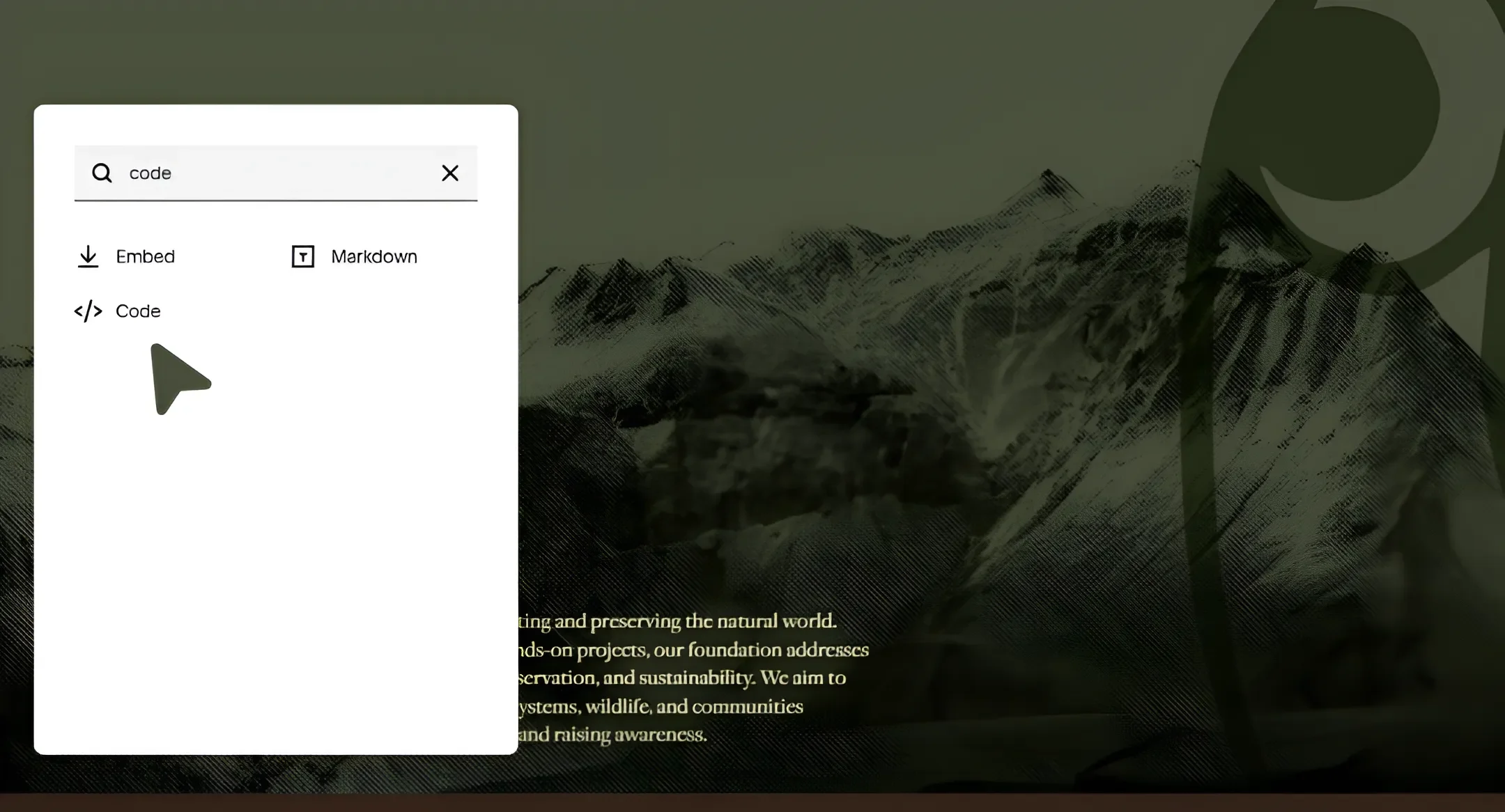
Step 2: Add a Code Block
Click Edit on your page.
Select the "+" icon and choose Code Block.
Position the block where you'd like the vertical line to appear.
Step 3: Add the HTML
Paste the following code inside the code block:
<div class="vertical-line"></div>
Save the block.
Step 4: Add the CSS
Go to:
Website → Website Tools → Custom CSS
Paste the following code:
.vertical-line {
background: #ffffff;
height: 550px;
width: 2px;
margin: auto !important;
}
Once saved, your vertical line will appear on the page.Paste the following CSS into the box:
background: #000000 → Controls the color of the vertical line. In this example, #000000 creates a black line, but you can replace it with any HEX color to match your website's design.
width: 1px → Controls the thickness of the vertical line. Increase this value if you'd like the line to appear thicker.
height: 100px → Controls the height of the vertical line. Increase or decrease this number depending on how long you want the line to be.
margin: 0 auto → Centers the vertical line within its container. This is a standard setting and usually doesn't need to be changed.
Frequently Asked Questions
-
If you want to add a horizontal line in Squarespace, you can simply use the built-in Divider Block. Just click the "+" button, select Divider, and Squarespace will automatically add a horizontal line to your page.
However, Squarespace doesn't currently include a built-in option for creating vertical lines. If you'd like to add a vertical line between text, images, or columns, you'll need to use a small Code Block along with custom CSS, as shown in this tutorial.
-
Squarespace does not currently provide a built-in vertical divider block, so custom code is typically required.
-
Yes. The color of the vertical line is controlled by the background property in the CSS. Simply replace the existing HEX code with the color of your choice. For example, #000000 creates a black line, while #ffffff creates a white line. You can use any HEX color that matches your website's branding.
-
Yes. The thickness of the vertical line is controlled by the width property. By default, the line may be set to 1px, but you can increase it to 2px, 3px, 5px, or any other value depending on the look you're trying to achieve. Larger values will create a thicker, more prominent divider.
Final Thoughts
Adding a vertical line in Squarespace is one of the simplest ways to improve your website's visual structure.
With just a small HTML snippet and a few lines of CSS, you can create professional-looking dividers that help organize content and enhance your design.
The best part is that you can fully customize the color, thickness, height, and style to match your brand.
You May Also Like;