
How to Add a PDF to Squarespace With a Download Button
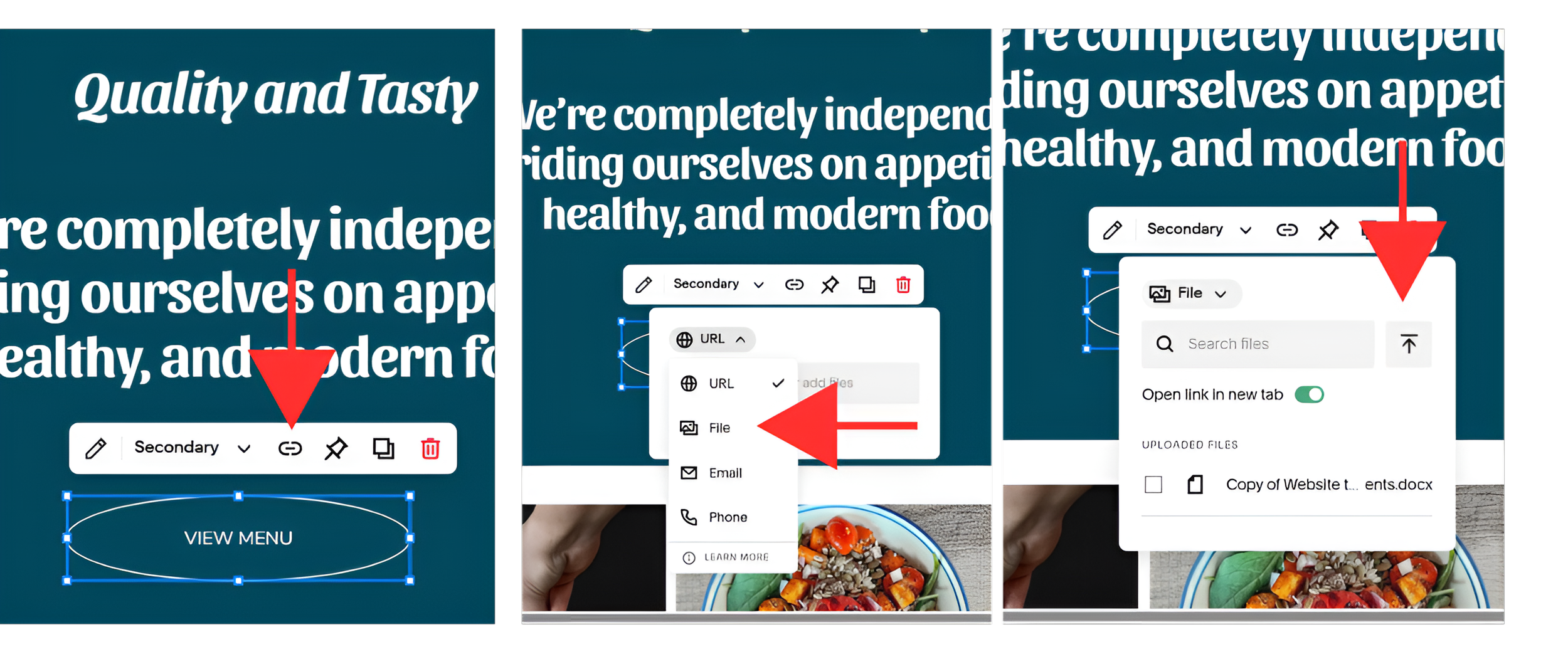
Want to share a pricing guide, brochure, or useful resource on your website? Learning how to add a PDF to Squarespace gives you a simple way to put that information within reach of your visitors.
Instead of asking someone to email you for a document, you can add a clearly labeled button where they need it. A potential client can view your services guide, an event attendee can access a schedule, or a customer can find your product catalog.
This guide walks you through uploading a file and linking it to a Squarespace button, without custom code.
How Do You Add a File to a Squarespace Button?
Edit your page, open the button’s link settings, choose File, upload and select your document, then save the changes. Visitors can use the button to access the file.
A file link may open a document in the browser or download it, depending on the file type and browser settings. A “Download” button label does not force an immediate download. Squarespace’s file guide explains this behavior.
Prepare Your Document Before Uploading
Start with the final version of the document you want visitors to receive. Check the wording, contact details, pricing, and any dates before adding it to your website.
Give the file a descriptive name, such as wedding-photography-pricing-guide.pdf, so you can recognize it later. Avoid names like “final-version-3,” which offer little context.
Files uploaded through Squarespace’s link editor must be 20 MB or smaller. Common formats include PDF, DOCX, and ZIP. See the file upload requirements.
Step 1: Open Your Page and Button Settings
Log in to Squarespace and open the page where you want to share the file. Click Edit, then select the button you want to use and open its editing controls.
If you’re sharing a services brochure, place the button near the relevant service description. For an event program, put it beside the event details. The goal is to make the document available at the moment someone is likely to need it.
Choose a label that explains what the visitor will receive. For example:
View Pricing Guide
Download Event Program
View Product Catalog
“View Pricing Guide” is particularly useful when your PDF opens for reading in the browser.
Step 2: Upload and Link Your File
Open the button’s link field or link editor. Select File from the link-type menu, then use the upload control to choose your document.
After uploading, select the file; a checkmark confirms the selection. For an existing upload, find it in Recently uploaded or search for it.
You can also enable Open link in new tab, although file type and browser behavior can affect the result. These steps follow Squarespace’s upload instructions.
Step 3: Save the Page and Test the Button
Apply or save the button changes where prompted, then save the page. The labels and arrangement of the editing controls may vary from the screenshots you’ve seen.
Open the page outside editing mode and click the button. Check that it leads to the correct document, that the document is readable, and that the button label accurately describes it.
Repeat the check on your phone. A brochure that looks polished on a large screen can still be awkward to read on a smaller one, especially if the text is tiny or the layout is crowded.
Make Your Download Button More Useful
A button works best when the surrounding copy gives people a reason to click. Rather than placing a download on its own, add a short explanation of what’s inside.
For example, a photographer could introduce a pricing guide with:
“Explore package options, what’s included, and how to book your session.”
Then use View Photography Pricing as the button text.
Keep the description brief and specific. Visitors should understand what they’re opening without needing to guess, and the document should deliver what the page promises.
Common Problems to Check
1. The Button Opens the Wrong Document
Return to the button settings and check the selected file. Similar filenames can make it easy to choose an older draft.
Use a clear naming system for updated documents, and check every button that offers the same resource when you revise it.
2. The PDF Opens Instead of Downloading
This can be normal. Visitors may need to use their browser’s PDF viewer to save a copy. If your goal is simply to let people read the document, an opening PDF still serves that purpose. Squarespace explains file-opening behavior here.
3. Your Updated Button Isn’t Showing
First, confirm that you saved both the link changes and the page. Then refresh the page outside the editor and test again. Check that you’re viewing the same page you edited, especially if your site contains duplicate pages or similar buttons.
Need Help with Your Squarespace Website?
Book a free kick-off call to discuss your project requirements in detail. Whether you're launching a new Squarespace website, redesigning an existing one, or looking to improve functionality and user experience, we'll help you explore the best options for your goals.
Frequently Asked Questions
-
No. For the button-and-file setup described here, you can use the editing controls already available in Squarespace. There’s no CSS or JavaScript to paste. Focus on selecting the correct document, using a helpful button label, and testing the finished link before sharing the page.
-
Yes. When your pricing, services, or event details change, upload the revised document and point the button to that version. Treat this as a small content update: review the button wording and surrounding description at the same time so everything stays consistent.
-
Choose the wording that best matches the visitor’s task. “View Menu” suits someone who wants to read your restaurant menu now, while “Download Checklist” suits a resource they may want to keep. Be specific about the document, and avoid promising an automatic download if you haven’t confirmed that behavior.
-
A publicly accessible file button does not create a checkout or verify payment. If you want to charge for an ebook, workbook, or other document, use a selling workflow such as Squarespace’s download products feature. Plan the purchase and delivery experience before publishing the file. Learn about Squarespace download products.
Final Thoughts
Adding a file to a button is a small improvement that can make your website more helpful. Whether you’re sharing a brochure, event program, or pricing guide, the best approach is to make the resource easy to find and clear about what it offers.
Keep your documents current, use descriptive button labels, and check the experience on desktop and mobile. These details help visitors move from browsing your website to finding the information they need.
Building or improving a Squarespace website? Book a free call with me to discuss your website, goals, and the improvements you have in mind. Whether you need a few thoughtful updates or a complete redesign, I can help you create a professional Squarespace website that reflects your brand and encourages visitors to take action.
