
How to Enable and Customize Cookie Banner on Squarespace

A cookie banner on your Squarespace website tells visitors which cookies your site uses and why. These cookies may remember preferences or collect information about website traffic. Depending on the options you enable, visitors can accept or decline non-essential cookies and manage their preferences.
Squarespace includes a built-in cookie consent banner that you can customize to match your website. You can edit the message, choose which consent buttons appear, and adjust the banner’s colours, text size and position. In this guide, I’ll show you how to enable the banner, configure its settings and make it fit your website’s design.
Why Use a Cookie Banner on Your Squarespace Website?
Cookies are small pieces of data stored on a visitor’s device. They can help your website:
Remember visitor preferences.
Support features such as shopping carts and customer accounts.
Show how people visit and use your website.
Cookie requirements depend on your audience, location and the cookies you use. For example, UK rules require clear information and consent for cookies unless an exemption applies.
A Squarespace cookie banner lets visitors accept, decline or manage cookies. Turning it on does not automatically mean your website meets GDPR privacy rules. You also need a clear privacy policy and must check that connected tools, such as analytics, respect visitors’ choices.

Need Help with Your Squarespace Website?
Book a free kick-off call to discuss your project requirements in detail. Whether you're launching a new Squarespace website, redesigning an existing one, or looking to improve functionality and user experience, we'll help you explore the best options for your goals.
How to Enable Cookie Consent on Squarespace
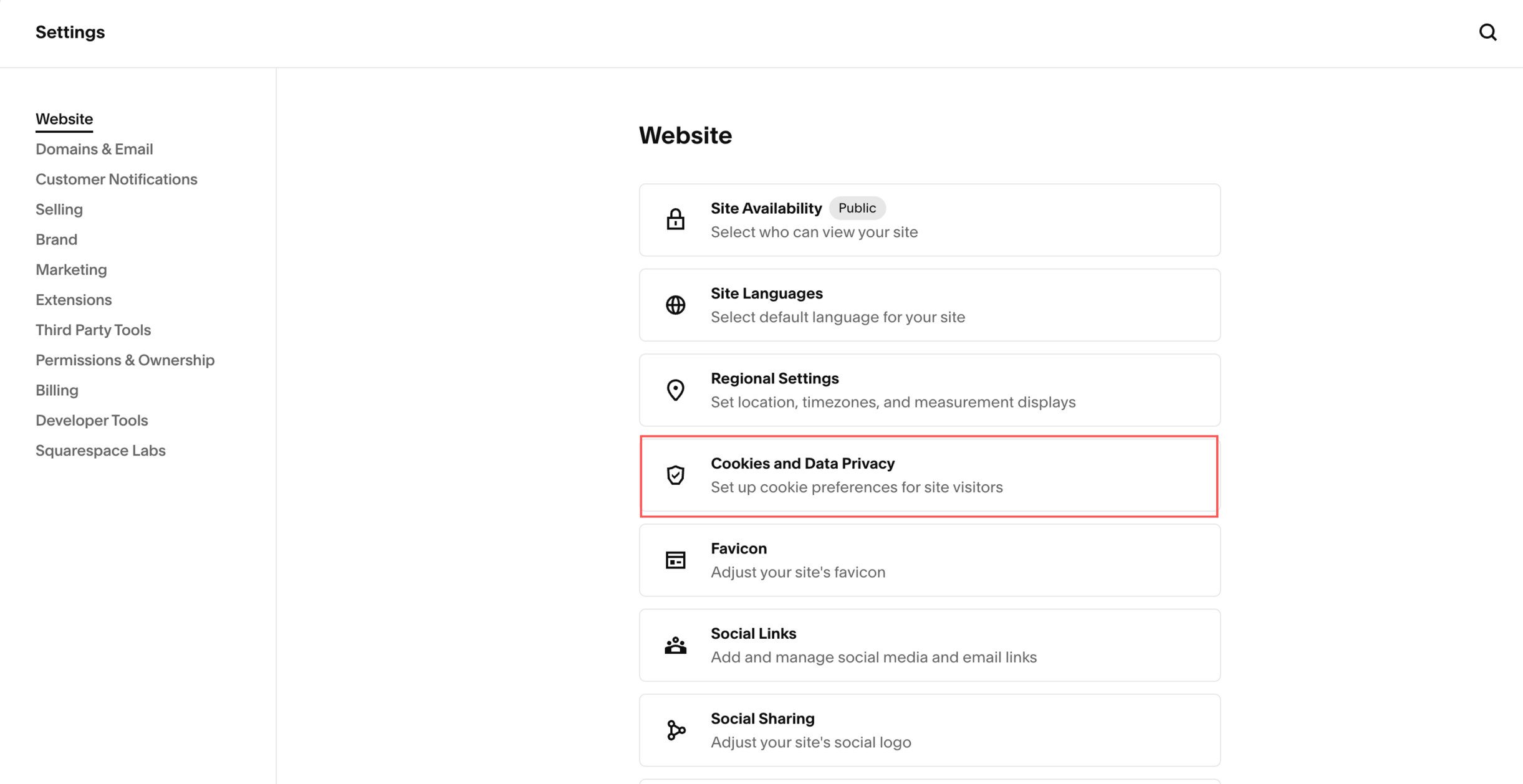
Step 1: Open Cookie Settings
Sign in to Squarespace and open your website.
Go to Settings → Website → Cookies & Data Privacy.
Step 2: Enable Your Squarespace Cookie Banner
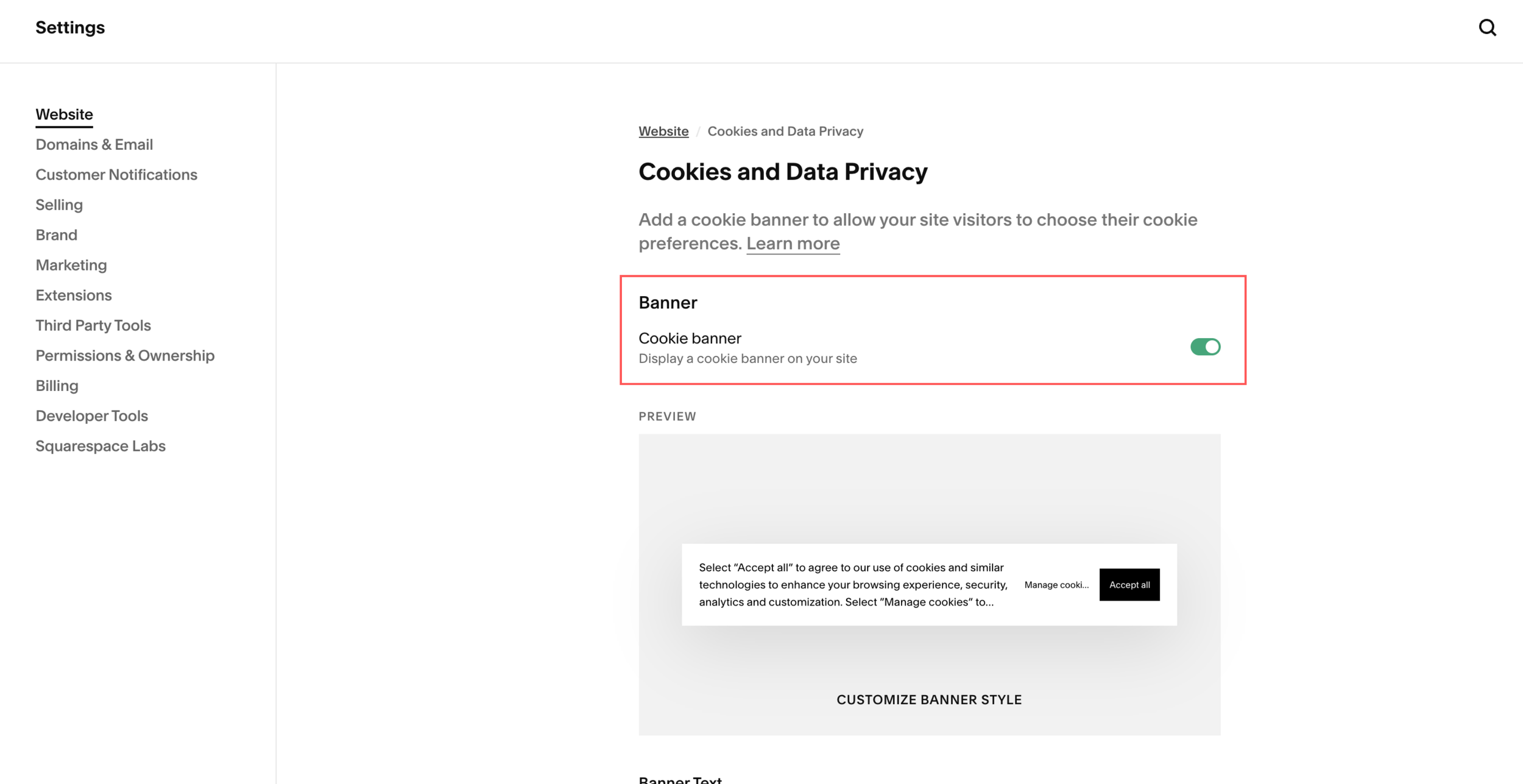
Turn on the Cookie banner toggle.
Enable Decline all and Manage cookies to offer visitors those options alongside acceptance.
Edit the disclaimer and button labels.
Link to your privacy or cookie policy.
Click Save.
Keep button labels clear so visitors understand what each choice does.
Step 3: Check Non-Essential Cookie Restrictions
Review Advanced Privacy Settings → Non-essential cookies and keep restrictions in place until visitors consent.
The built-in banner supports Squarespace cookies and certain integrations. Custom tracking scripts and other third-party services may need additional consent configuration
Customizing Squarespace Cookie Preferences
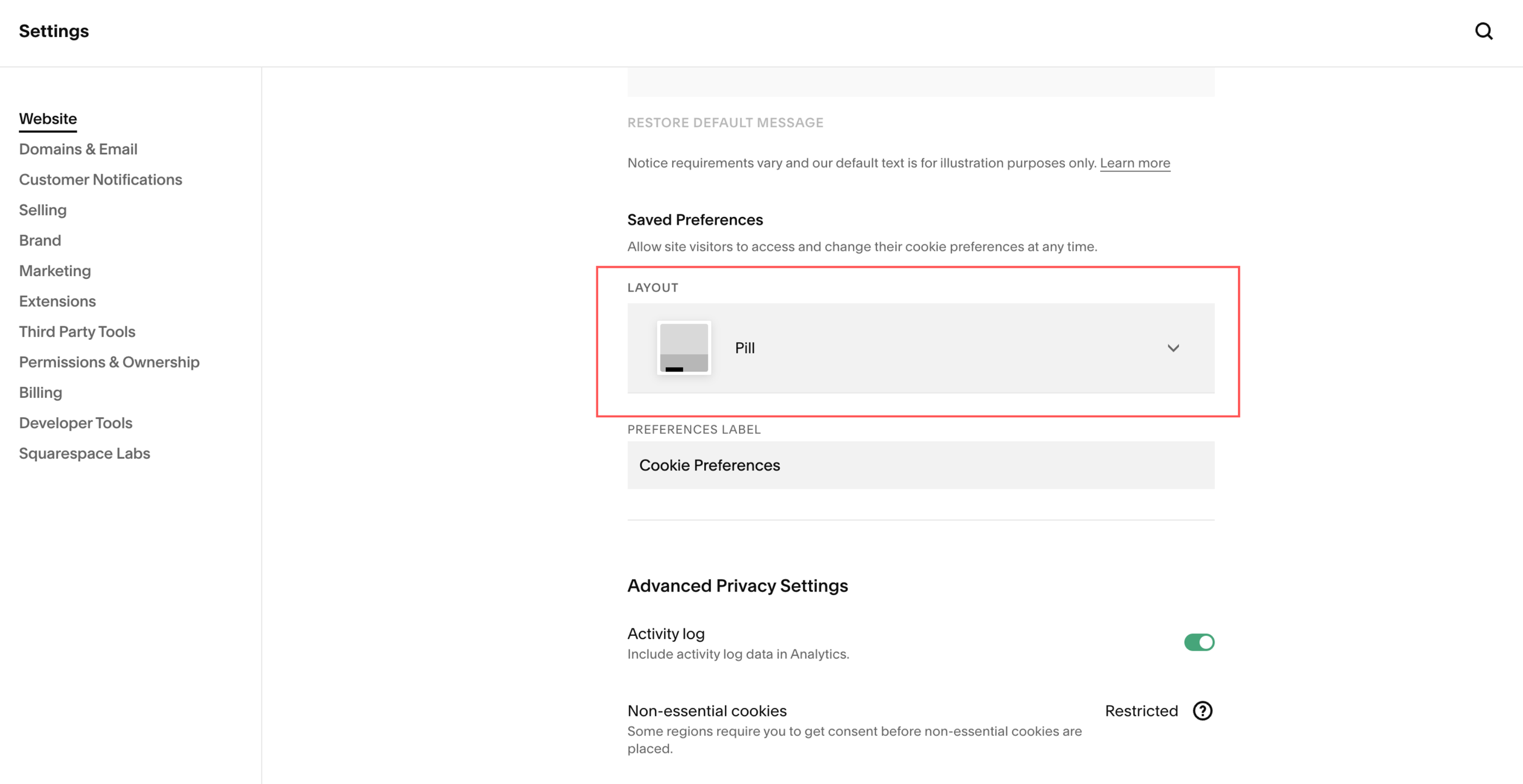
Choose a Subfooter or Pill layout for saved cookie preferences. This lets visitors reopen their settings after making an initial choice.
A subfooter displays a preferences link below your footer. The pill option provides a button for accessing those settings.
Keep this option easy to find so visitors can change their preferences.
Choosing Your Squarespace Cookie Banner Position
Under Preview, click Customize Banner Style to adjust the banner’s position.
A bottom placement can work well if it keeps your header and navigation clear. Choose the position that suits your layout rather than assuming one location works for every website.
Check that the banner leaves important content and buttons accessible, especially on mobile.
Customizing Your Squarespace Cookie Banner Design
On Squarespace 7.1, you can choose a colour theme and adjust the disclaimer text size to match your website.
Adjust Text Size
Keep the message readable on desktop and mobile. Avoid making the text too small just to reduce the banner’s size.
Match Your Website Colours
Choose an existing colour theme for the banner. To adjust background, text, button or toggle colours, edit the corresponding theme in Site Styles → Colors.
Changes to a shared colour theme affect other parts of your website using that theme. Check those areas before saving. Use clear contrast so visitors can read the message and identify the consent buttons.
Preview and Test Your Cookie Banner
Save your changes, then open your website while logged out or in a private or incognito window. The banner does not display when you are logged into Squarespace.
Check that:
The message and buttons are readable on desktop and mobile.
Accept, decline and manage options work.
Visitors can reopen their preferences.
The banner does not cover important navigation or enquiry buttons.
Final Thoughts
Enabling and customizing a Squarespace cookie banner is straightforward. Clear wording, accessible consent options and a suitable design help visitors understand and manage their choices.
Check your connected tools as well as the banner itself, so your settings reflect how your website actually uses cookies.
Building or improving a Squarespace website? Book a free call with me to discuss your website, its performance and how I can help create a professional Squarespace experience that supports your business goals.
