
How to Add a Border to Sections in Squarespace

Adding a border between sections can be a simple way to give your Squarespace website more structure and visual polish. A subtle line can separate different areas of a page, improve readability, and make the overall layout feel more intentional.
The good news is that in Squarespace, you can now create section borders and other types of visual dividers directly through the editor. You don't necessarily need custom CSS or code to achieve the effect.
In this guide, we'll show you how to add a border to a section in Squarespace, how to customize its appearance, and when to use different divider styles.
Why Add a Border Between Sections in Squarespace?
A long webpage can sometimes feel like one continuous block of content. Adding a border or divider between sections helps create a clearer visual structure.
A well-placed Squarespace section border can help you:
Separate different content areas
Create stronger visual hierarchy
Make long pages easier to scan
Add subtle branding to your website
Give your design a more polished and intentional appearance
You don't need to add a divider to every section, though. In most professional websites, these elements work best when they're used selectively.
How to Add a Border to a Section in Squarespace
Squarespace's section settings give you several options for creating visual separation between sections.
Here's how to get started.
Step 1: Open Your Squarespace Website Editor
Log in to your Squarespace account and open the website you want to edit.
Navigate to the page where you'd like to add the border, then select Edit to open the page editor.

Step 2: Choose the Section
Scroll to the section where you want the border to appear.
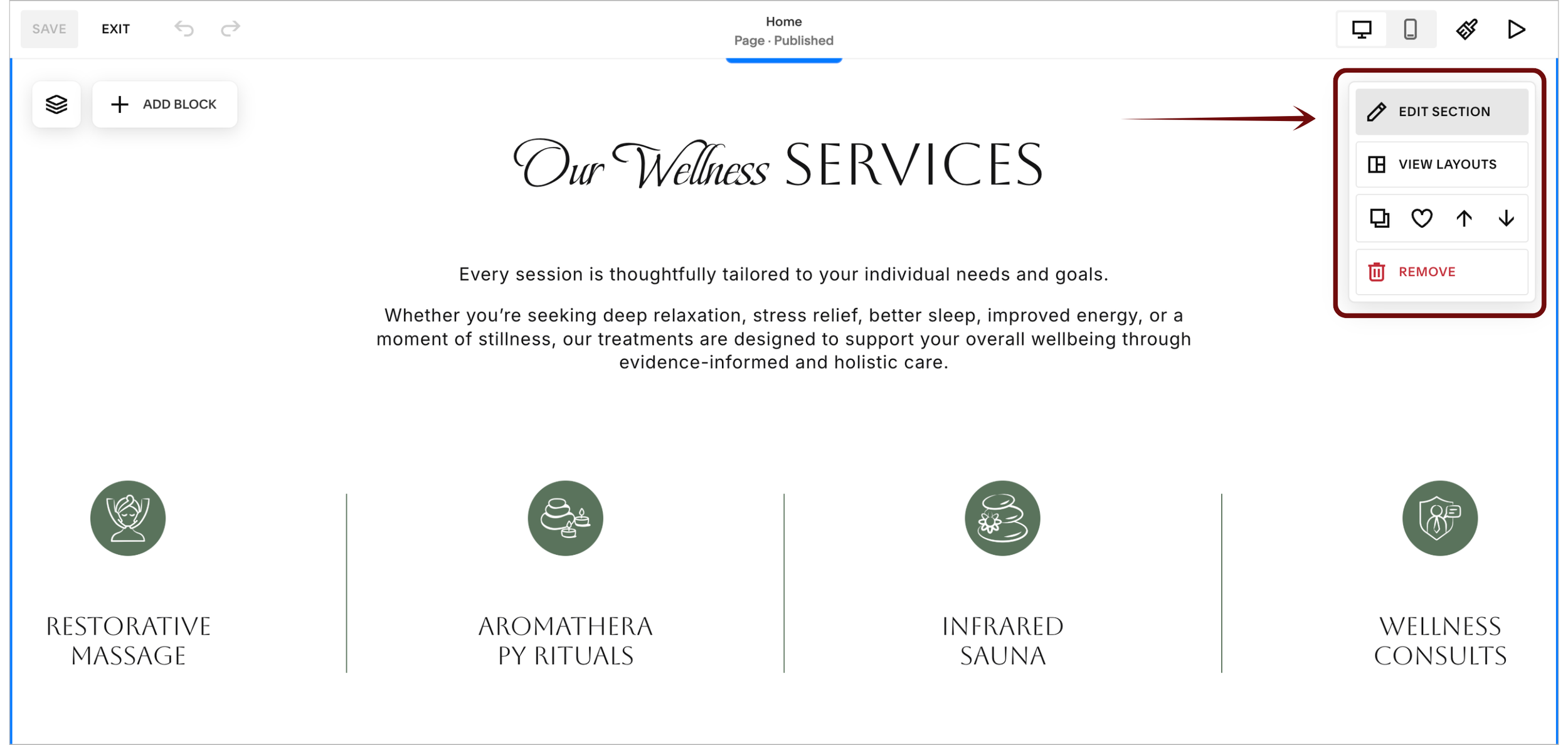
Hover over the section and select Edit Section to open its settings.
This is where you'll find the design controls for that particular section.
Step 3: Find the Divider Settings
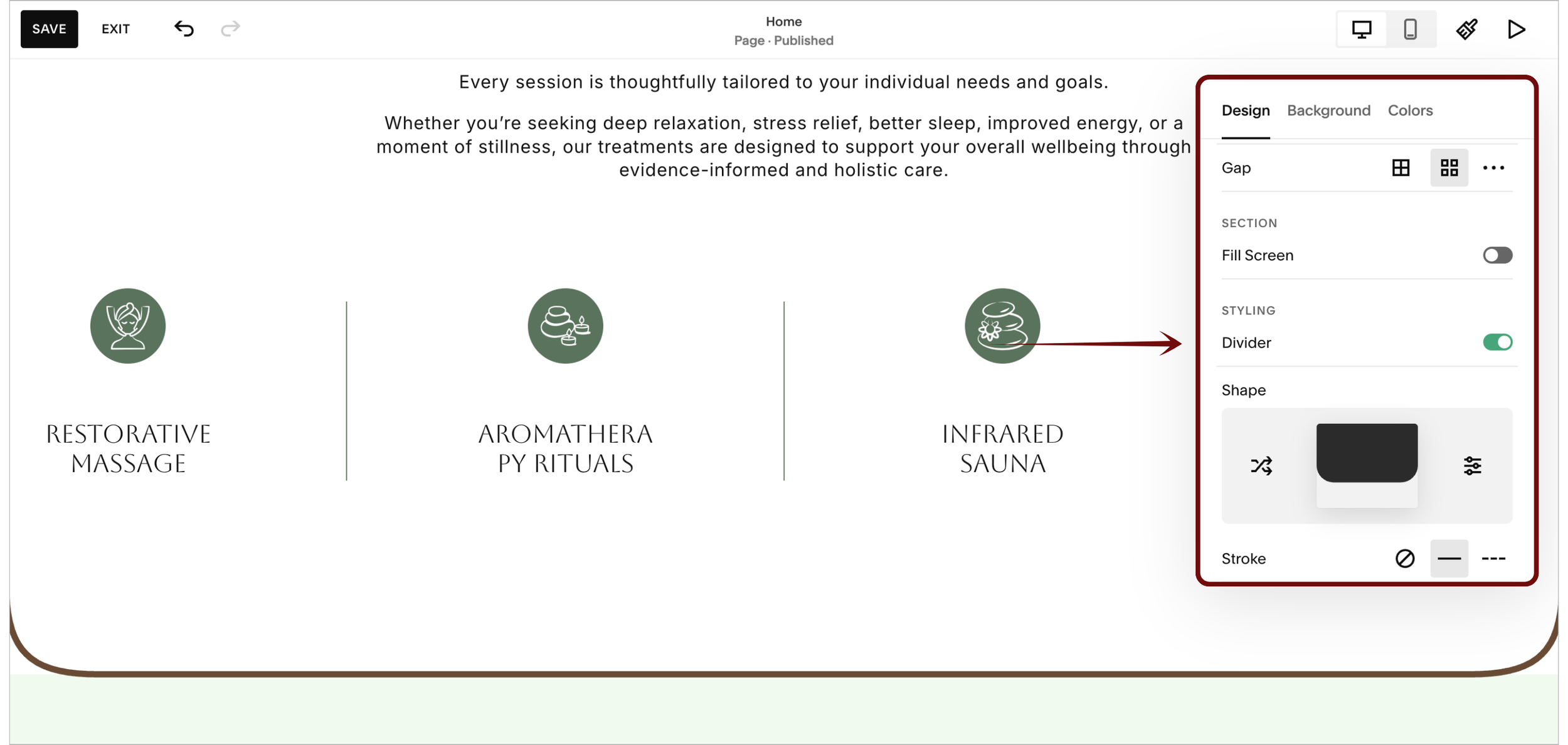
Within the section settings, look for the Divider option.
The name is important because Squarespace's divider feature isn't limited to simple horizontal lines. Depending on the design you're creating, you can also use decorative shapes and transitions between sections.
If your goal is simply to create a clean border, you can use the stroke settings.
Step 4: Customize the Section Border
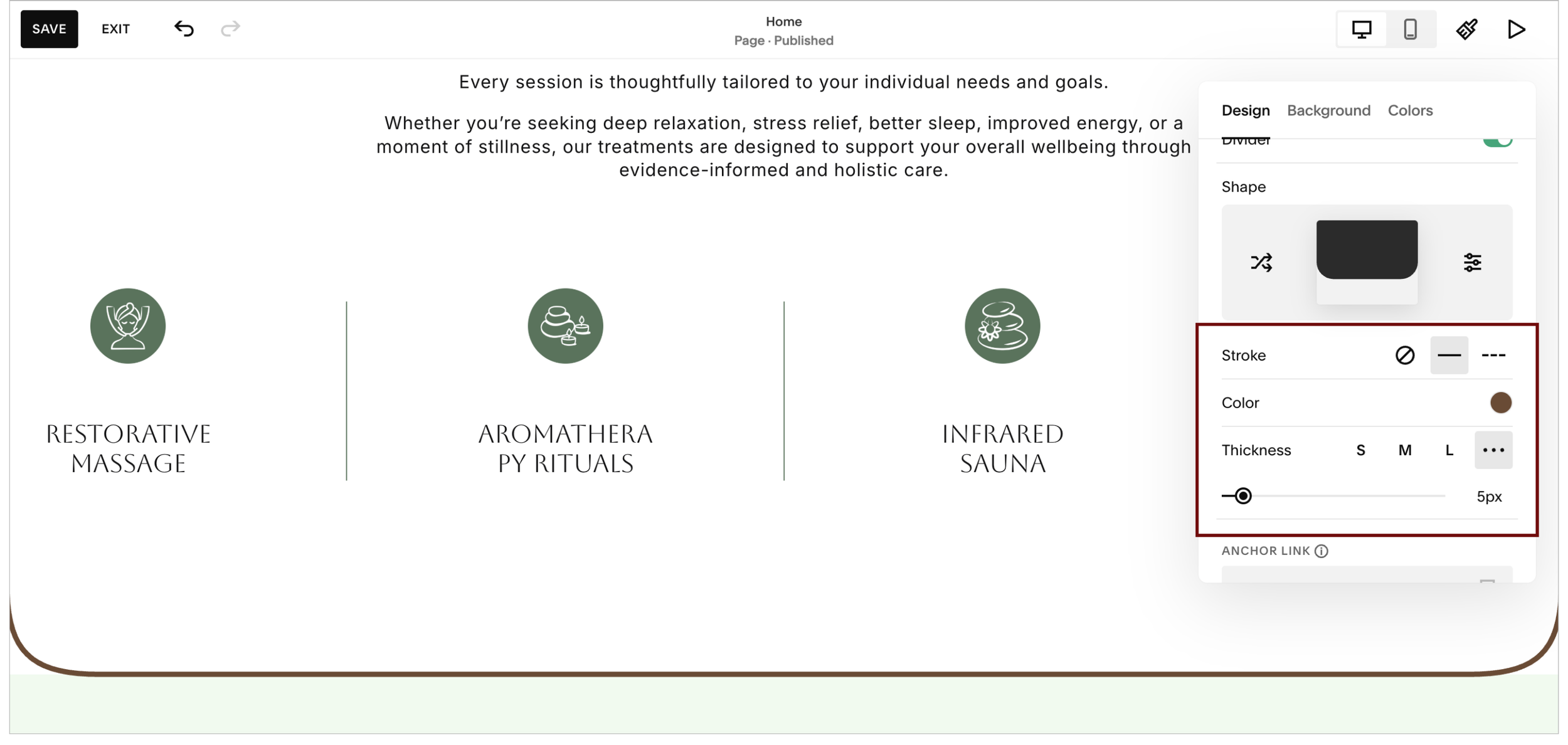
Under the Divider settings, look for the Stroke options.
Depending on the available settings, you can adjust elements such as:
Style – Choose a solid or dotted line.
Thickness – Adjust how prominent the border appears.
Color – Select a color from your site's palette or choose a custom color.
Opacity – Reduce the opacity when you want a softer, less noticeable divider.
For a clean and modern website, try starting with a thin solid line and a relatively subtle color.
For example, a neutral grey or a muted version of your brand color can provide separation without competing with the content.
Using Other Squarespace Section Divider Styles
A border isn't the only way to separate sections.
Squarespace also provides more decorative divider styles that can create a stronger transition between different areas of your page.
Depending on the design you want, you can experiment with styles such as:
Waves
Curves
Angled transitions
Layered shapes
These options can be particularly useful for creative, portfolio, lifestyle, or visually expressive websites where a simple line may feel too minimal.
Customize the Divider Shape
When using a decorative divider, you may also have controls that allow you to adjust characteristics such as:
Shape size
Spacing
Alignment
Direction
Orientation or flipping
This gives you more control over how the transition fits into your overall layout.
One useful effect is allowing the background color of the following section to extend into the divider area. This can create a smoother transition between two sections instead of making the sections feel completely disconnected.

Need Help with Your Squarespace Website?
Book a free kick-off call to discuss your project requirements in detail. Whether you're launching a new Squarespace website, redesigning an existing one, or looking to improve functionality and user experience, we'll help you explore the best options for your goals.
Final Thoughts
A well-designed Squarespace section border is a small detail, but it can have a noticeable impact on how a webpage feels.
Whether you choose a simple line, a dotted stroke, or a more creative wave or curved divider, Squarespace gives you several ways to create visual separation without relying on custom code.
For most professional websites, the best approach is to keep the effect intentional and subtle. Use borders where they improve hierarchy, guide visitors through the page, or reinforce your visual identity.
Building or improving a Squarespace website? A polished design is all about getting the details right. Book a free call with me to discuss your website, goals, and how I can help turn your ideas into a professional Squarespace website that’s built to convert.
