
How to Change Site Title in Squarespace (6-Step Guide)
Have you ever landed on Google and noticed your Squarespace URL showing up instead of your actual business name? It's a surprisingly common issue , and fortunately, one of the easiest to fix.
In this guide, we'll show you exactly how to change your site title in Squarespace in just 6 steps, along with some practical SEO tips to make sure your site name is working hard for you in search results.
Why Is the Site Title Important?
Before we dive into the steps, it's worth understanding what's at stake.

Your site title is not just a label , it's a core part of your online presence. It appears in:
Google search results — often the first thing someone reads before clicking
Browser tabs — helping users recognise your site when they have multiple tabs open
Social media shares — when someone links to your site on LinkedIn or Twitter
Bookmarks — giving users a clear name to save
A clear, well-crafted site title improves your click-through rate, reinforces your brand, and signals to search engines what your website is about. Whether you're looking to change your site name on Squarespace or simply freshen up your branding, getting it right is a small change with a meaningful impact.
Site Title vs SEO Site Title , What's the Difference?
Before we show you how to update your title, let's make sure you're clear on these two terms , because they're not the same thing.
Site title - This is the name of your website, usually your business name or your own name. It's what visitors see when they land on your site, typically displayed in the navigation bar or header. Depending on your settings, it may also appear in browser tabs and social shares.
SEO site title - This is what appears specifically in Google search results for your homepage. It's usually more detailed than the site title and includes keywords related to your business. For example, your site title might be "Casual Spaces," while your SEO title might be "Casual Spaces , Affordable Interior Design in London."
Getting both right is important: your site title shapes your brand, while your SEO title drives organic traffic. Many people ask how to change their website name on Squarespace without realising these are two separate settings , so it's worth knowing the difference before you make any changes.
How to Change Site Title in Squarespace
You can change the name of a site on Squarespace by following these 6 steps:
Step 1: Access the site editor
Log in to your Squarespace account and head to your Account Dashboard. From there, select the website you want to edit to enter the site management panel.
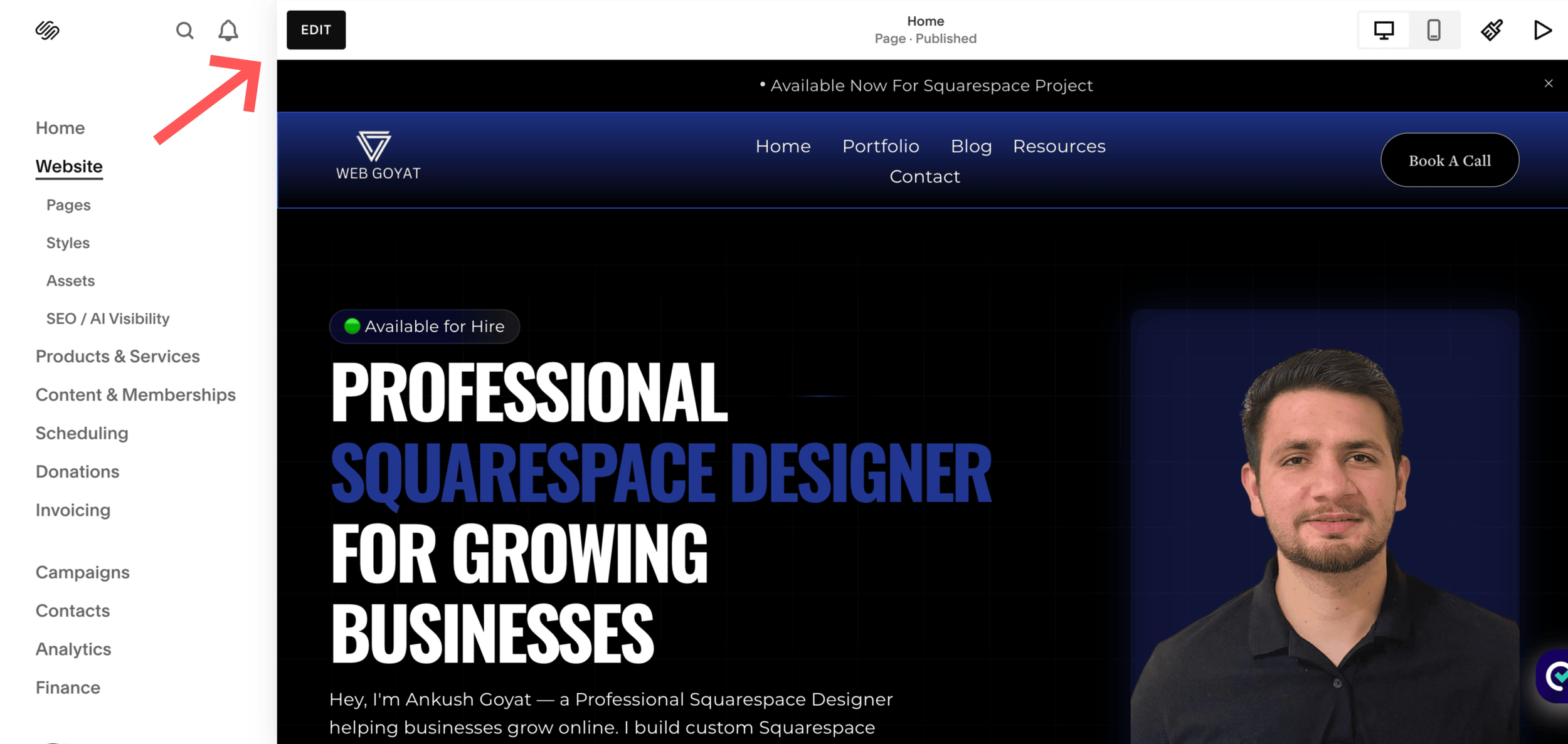
Step 2: Enter edit mode
Click the "Edit" button in the top left corner of the screen. This switches you into live edit mode, where you can see changes as you make them in real time.
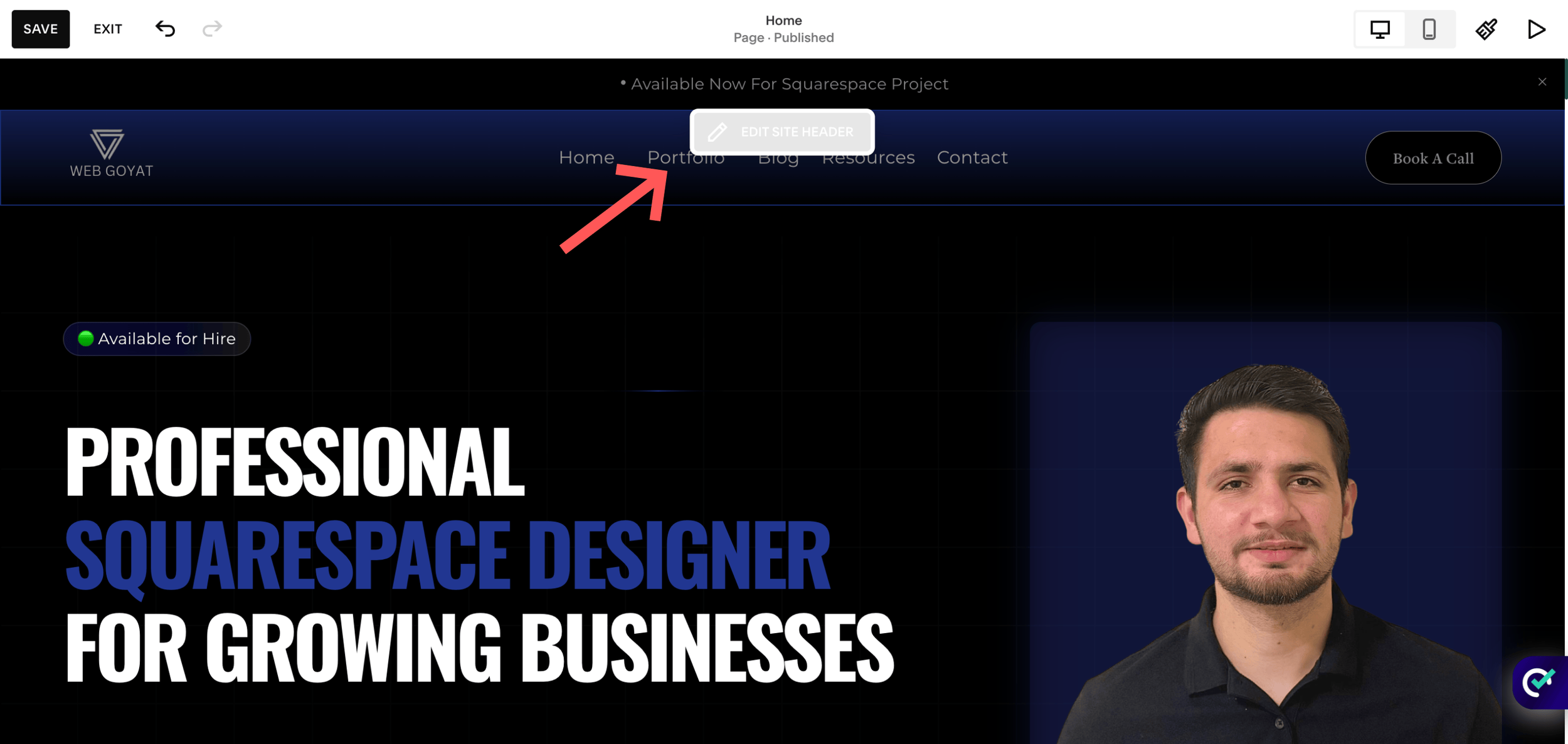
Step 3: Locate the site header editor
Hover over your site's header area. A button labelled "Edit Site Header" will appear , click it. This opens the header settings panel where your site title, logo, and navigation options all live..
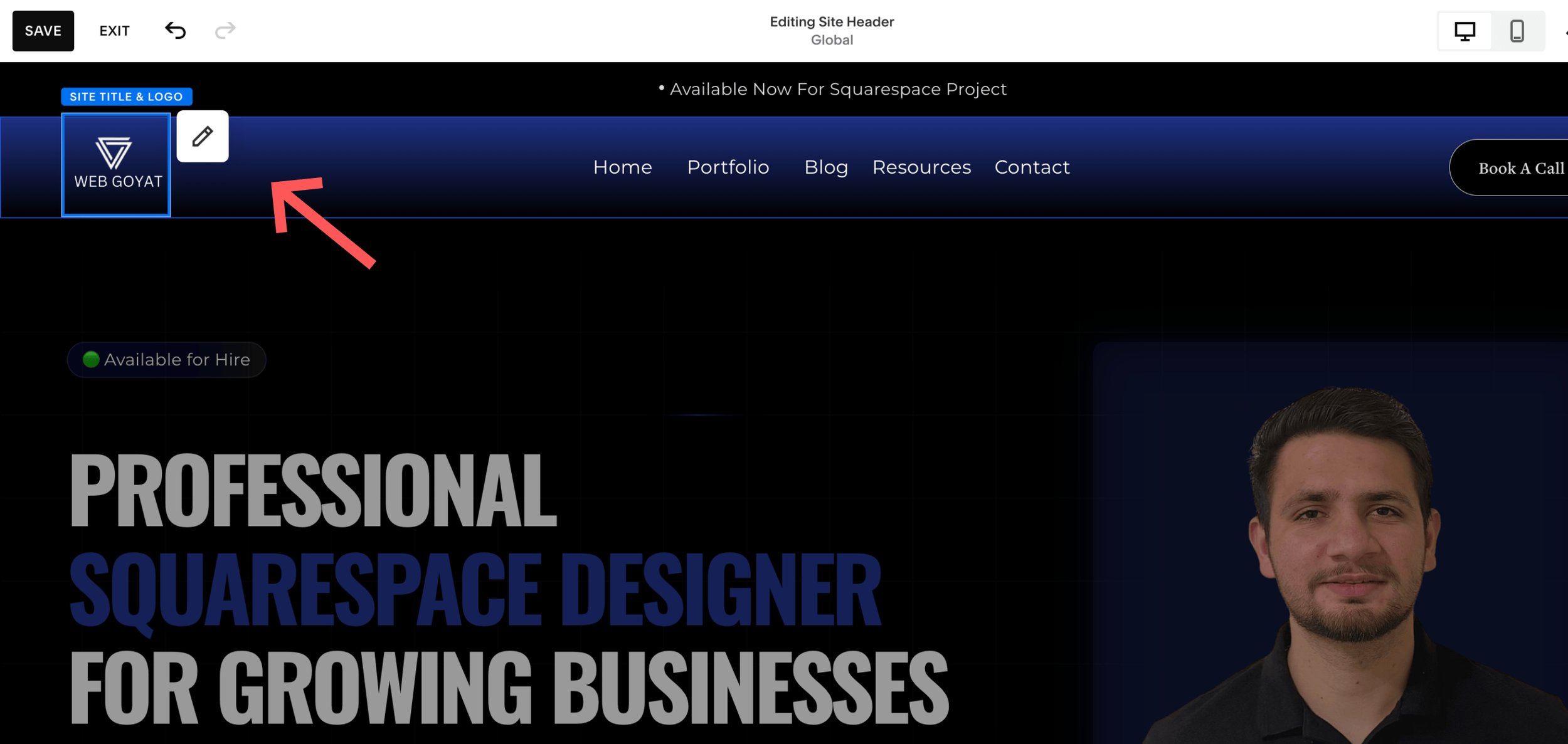
Step 4: Locate the title editor
Inside the site header editor panel, look for the "Site Title & Logo" option. Click on it to open the specific settings for how your title is displayed , including font, size, and the title text itself.
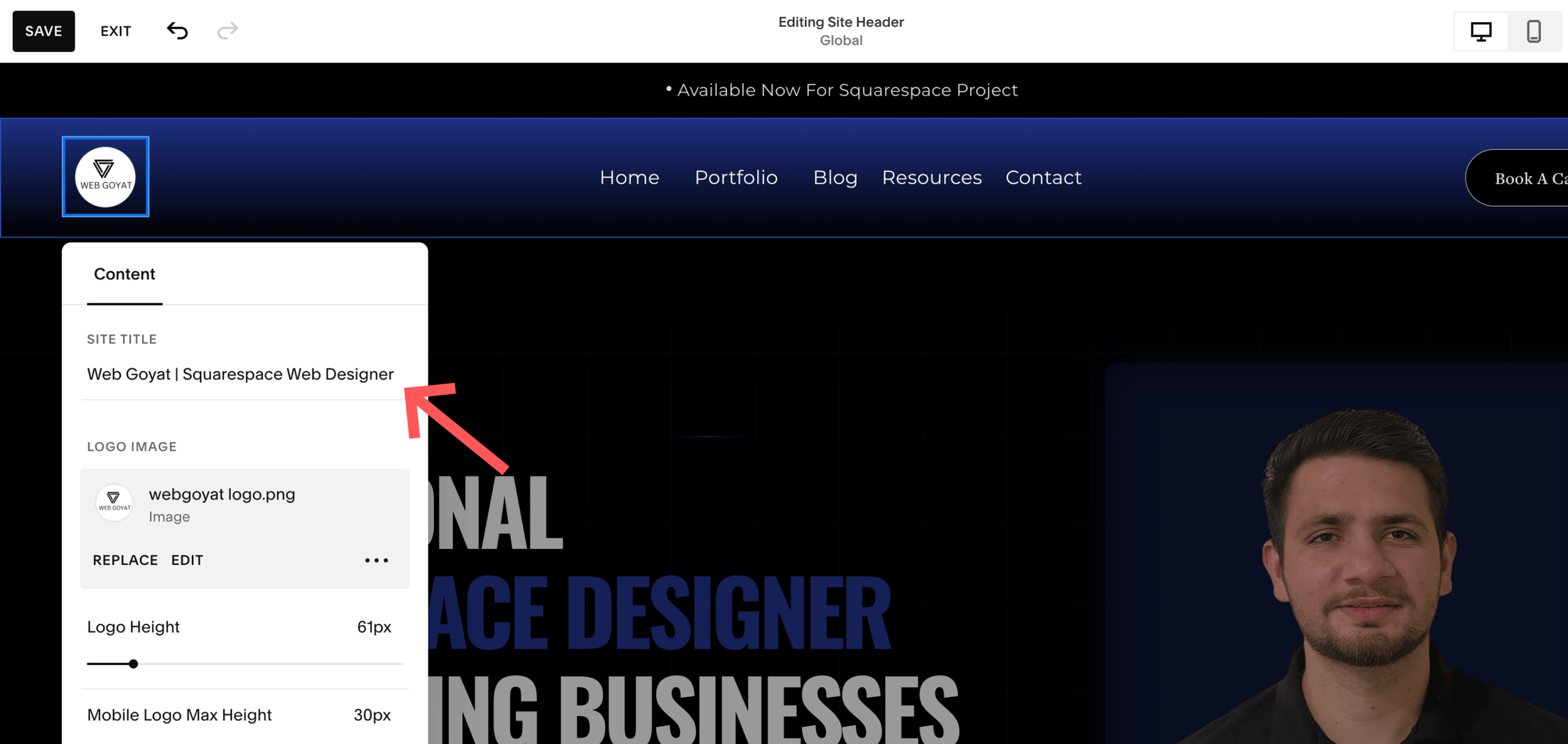
Step 5: Enter the new site title
Type your new site title into the text field provided. Make sure it clearly represents your brand or business. For example, changing "Casual Spaces" to "Advanced Spaces" is a simple update that takes under a minute but has lasting impact on how your site is perceived.
Step 6: Save your changes
Click the "Save" button in the top left corner. Once saved, click "Exit" to leave the editor. Your new site title will now appear across your website, in browser tabs, social shares, and , once Google re-crawls your site , in search results too.
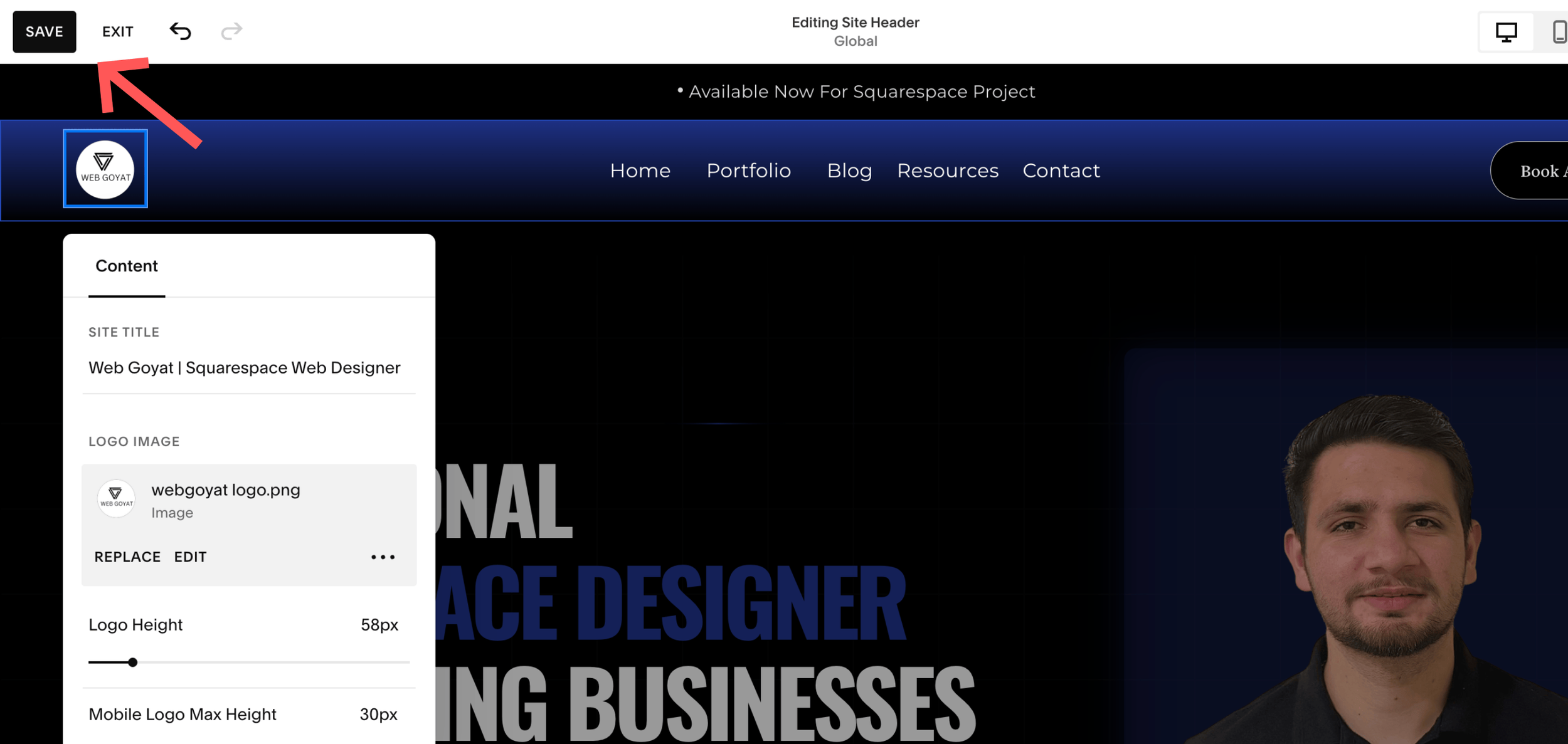
Congratulations! You've successfully changed your site title in Squarespace.
5 SEO Tips for Your Squarespace Site Title
Now that you know how to change site title in Squarespace, here are five tips to make sure your new title is doing its job in search results.
1. Keep it under 60 characters Google cuts off titles longer than 60 characters in search results. Keep yours tight and to the point so nothing gets trimmed.
2. Include your main keyword naturally If it fits naturally, include a relevant keyword in your site title. Don't force it , Google rewards readability over keyword stuffing.
3. Lead with your brand name Your site title is a branding tool first. Put your business name at the front so it's immediately recognisable in search results and browser tabs.
4. Update your SEO title separately Remember, the site title and SEO title are different settings. After changing your site name, go to Pages > Home > gear icon > SEO tab and update your meta title there too for full control over what Google displays.
5. Test how it looks in search results Use a free SERP preview tool like Mangools to see exactly how your title will appear in Google before committing to it.
Common Mistakes to Avoid
1. Making the title too long Search engines typically display up to 60 characters of a site title. Going over this means your title gets cut off in results , always aim to be concise.
2. Confusing the site title with the SEO title Remember: updating your site title doesn't automatically update your SEO title. If you want to control exactly what appears in Google, go to Pages > Home > SEO and update the meta title there separately. This is one of the most common points of confusion for anyone learning how to change site title in Squarespace for the first time.
3. Forgetting to save It sounds obvious, but many people exit the editor before clicking save. Always confirm your changes are saved before exiting.
4. Using a generic or keyword-stuffed title Your site title should reflect your brand , not be a list of keywords. Save keyword optimisation for your SEO title instead.
Conclusion
Changing your site title in Squarespace is a quick process that takes less than five minutes , but it's one of the most impactful adjustments you can make for your brand and search visibility. By following the 6 steps above, you can ensure your website displays the right name across Google, browser tabs, and social media.
Don't forget to also review your SEO site title to make sure it's working hard for you in search results. Small tweaks like these add up over time.
Ready to take your Squarespace site further? Explore our other guides on SEO settings, page titles, and meta descriptions to keep climbing the rankings.
Frequently Asked Questions
Can I rename my website on Squarespace?
Yes, absolutely. Squarespace lets you update your site title at any time through the site header editor. Simply follow the steps in this guide to rename your website in just a few clicks.
What is a site title on Squarespace?
A site title on Squarespace is the name of your website , usually your business name or personal brand. It appears in your site's navigation, browser tabs, and sometimes in search results and social shares.
How do I change my meta title in Squarespace?
To change your meta (SEO) title in Squarespace, go to Pages, click the gear icon next to your homepage, then select the SEO tab. From there, you can enter a custom SEO title that will appear in Google search results , separate from your site title.
Does changing my site title affect SEO?
Yes , your site title plays a direct role in your SEO. It influences your click-through rate in search results, signals relevance to Google, and contributes to your overall rankings over time. A well-optimised site title won't transform your rankings overnight, but it's a foundational step that adds up alongside your other SEO efforts.
How to Change Site Title in Squarespace Conclusion
Now you know how to change the site title in Squarespace, you can begin to change how you appear in search results to rank higher on Google, get more clicks from your target customers and look more professional online.
If you have any questions, feel free to reach out to Webgoyat , we're here to help make your site look exactly the way you want it to on search engines.

Need an expert to build your Squarespace website?
I'm Ankush, a Squarespace web designer and founder of webgoyat. I have worked with all types of businesses and organizations from preschools to publishing companies to chiropractic clinics and everything in between. If you want to discuss a potential project, you can email me at info@webgoyat.com or get in touch with me here. Alternatively, you can book in a free 15-minute consultation call here.
