
how to screenshot a whole webpage
If you’ve ever tried how to screenshot a whole webpage, you already know the frustration , your default screenshot tool only captures what’s visible on the screen.
So, is there a way to screenshot a whole webpage without stitching images together manually?
Yes , and in this guide, you’ll learn the easiest, fastest, and most reliable methods using tools like GoFullPage and Fireshot, along with pro tips to get perfect results every time.
By the end of this guide, you’ll be able to:
Capture full-page screenshots in one click
Avoid common mistakes
Choose the best tool for your workflow
Table of Contents
What is a Full Page Screenshot?
A full-page screenshot means capturing an entire scrolling page, not just the visible part of your screen. Instead of manually combining images, tools now allow you to screenshot a whole webpage automatically.
So if you’ve been asking “how to take a screenshot of a whole webpage”, this is exactly what you need.
The Easiest Way to Screenshot a Whole Webpage
The fastest method for how to screenshot a whole webpage is using browser extensions.
The two best tools are:
GoFullPage
Fireshot
Both allow you to screenshot a whole webpage in seconds, but each has its strengths
Step-by-Step Guide to Screenshot a Whole Webpage
Step 1: Install GoFullPage Extension
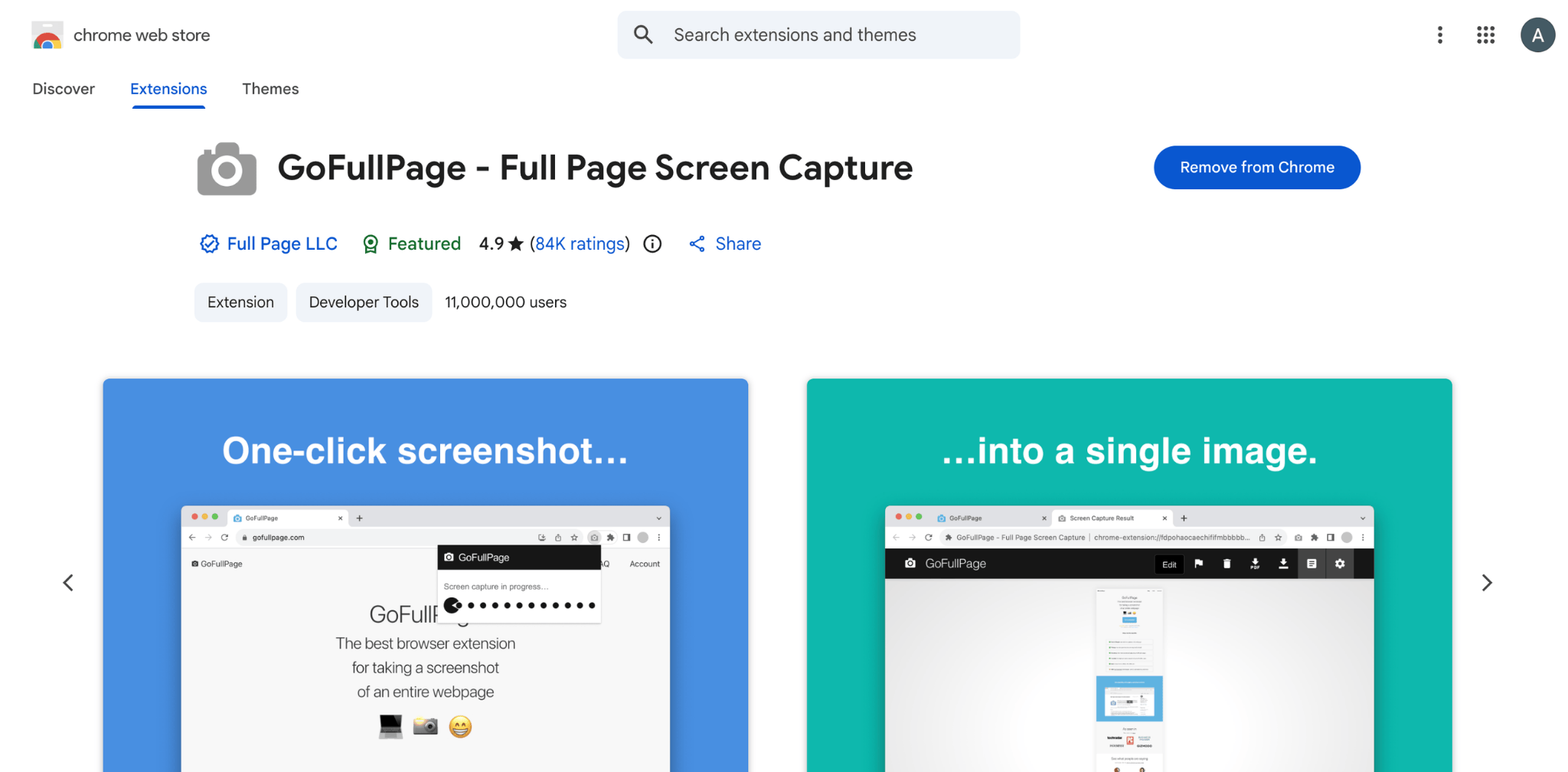
To get started, you first need to install the GoFullPage Chrome extension.
Open your browser (preferably Google Chrome)
Go to the Chrome Web Store
Search for “GoFullPage”
Click on Add to Chrome
Confirm by clicking Add Extension
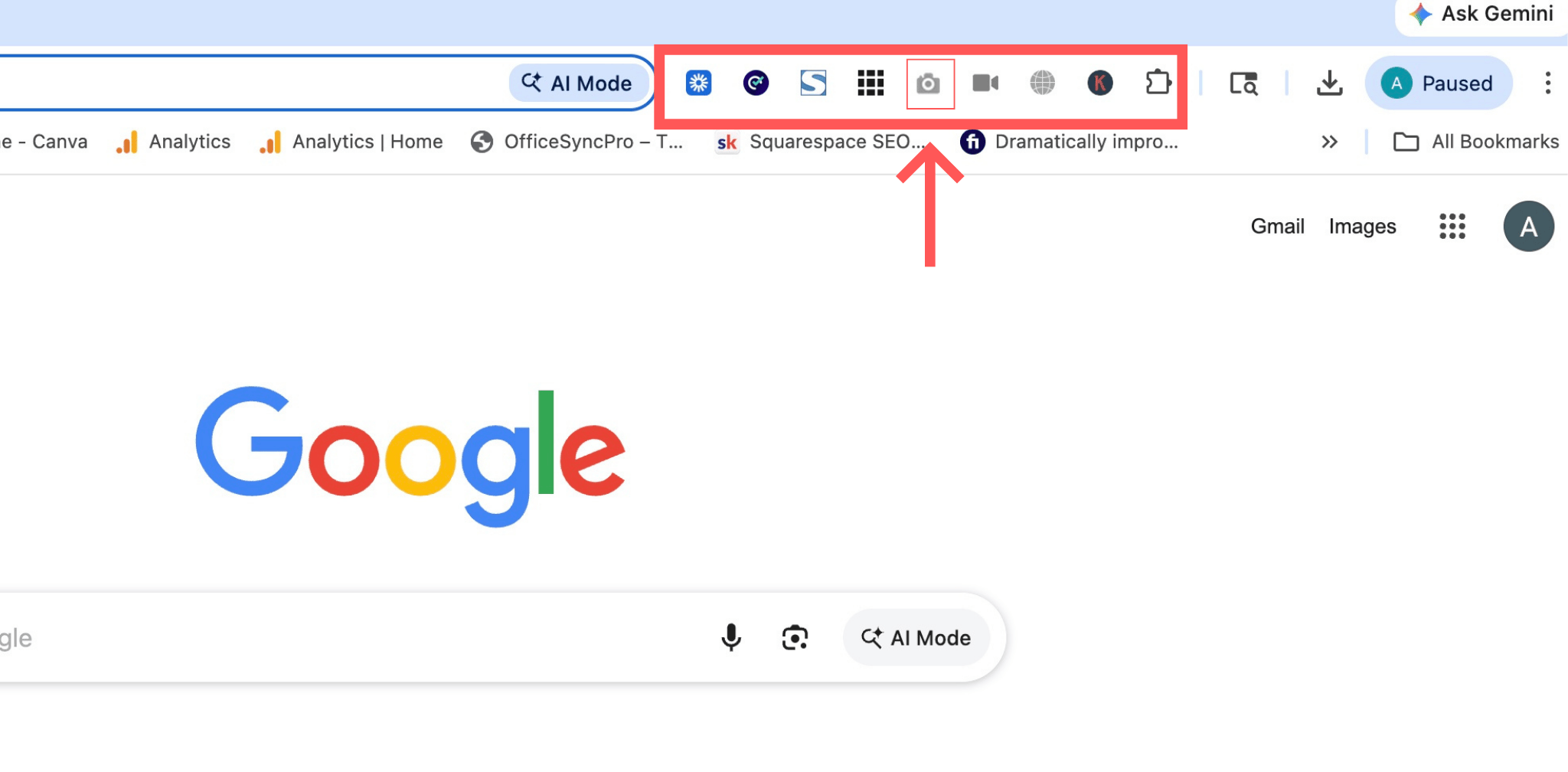
Once installed, you’ll see a small camera icon in the top-right corner of your browser toolbar.
Step 2: Open the Webpage You Want to Capture
Now that the extension is installed:
Go to the website or page you want to screenshot
Make sure the page is fully loaded
Scroll once manually to load all images (important for long pages)
This step ensures your screenshot captures everything correctly without missing sections.
Step 3: Click the GoFullPage Icon
This is where the magic happens:
Click the GoFullPage icon in your browser
The tool will automatically start scrolling the page
It captures everything from top to bottom
You don’t need to click anything else—just wait a few seconds.
Important : Don’t switch tabs while it’s capturing.
Step 4: Download Your Screenshot
After capturing:
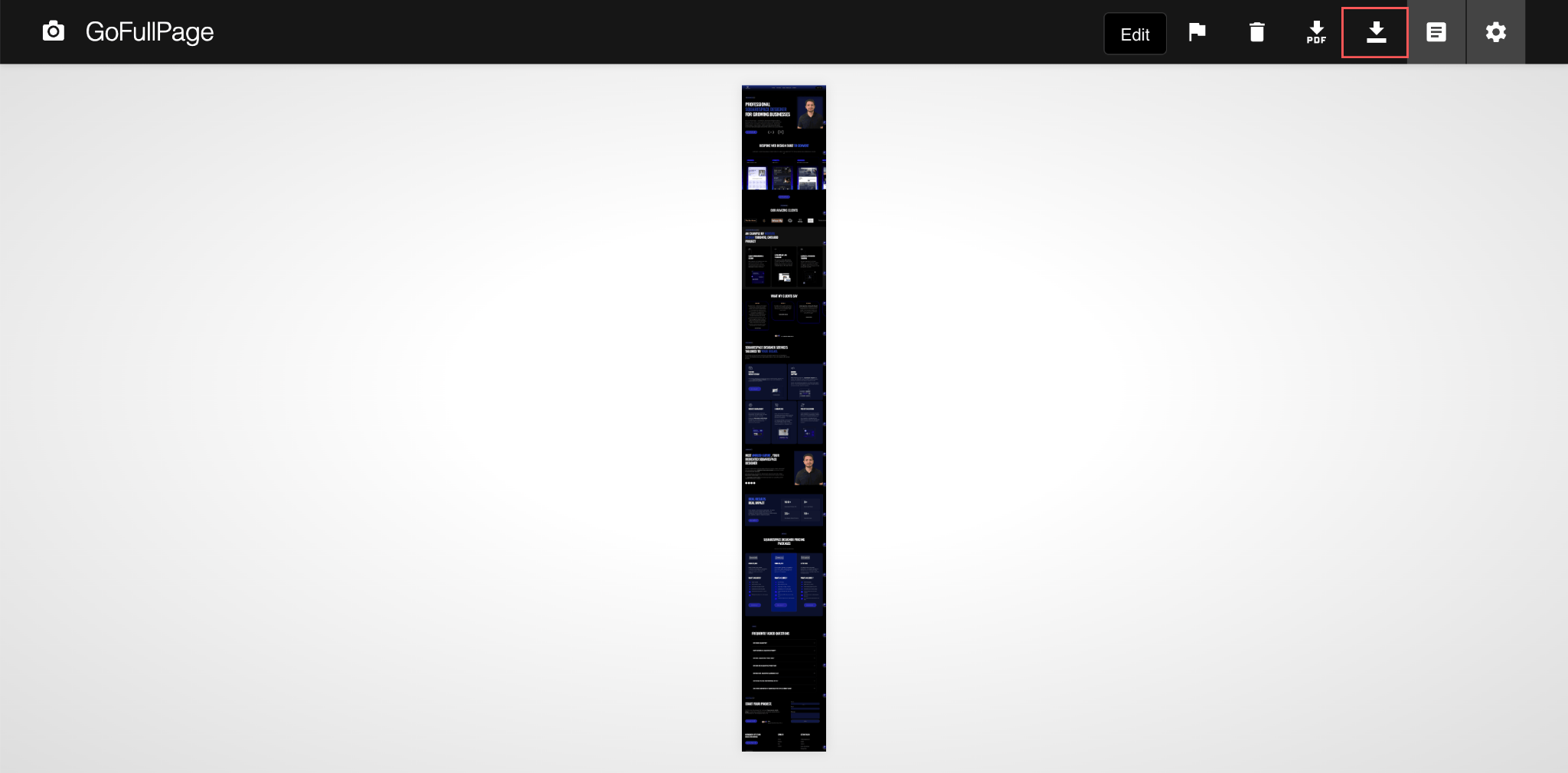
A new tab will open with your full-page screenshot
You’ll see options like:
Download as PNG
Download as JPG
Download as PDF
Choose the format you need and save it to your device.
Pro Tip: Use PDF if you’re sending it to clients or for presentations.
What If GoFullPage Doesn’t Work? (Use Fireshot)
Sometimes GoFullPage may not work properly on complex or dynamic websites.
In that case, use Fireshot extension for Chrome:
How to use Fireshot:
Install Fireshot from Chrome Web Store
Open your webpage
Click the Fireshot icon
Select “Capture entire page”
Download or edit your screenshot
Fireshot is more powerful and works better on:
Heavy websites
Login/private pages
Pages with animations
Tips for Cleaner Full-Page Screenshots
Once you know how to take a screenshot of a whole webpage, these tips improve quality:
Let the page fully load before capturing
Close popups, chat widgets, and banners
Zoom out for long pages
Use PDF format for client presentations
Avoid capturing during animations
Conclusion
Learning how to screenshot a whole webpage is a simple skill that saves a lot of time.
Use GoFullPage for quick, one-click captures
Use Fireshot when you need more control
Once you start using these tools, you’ll never go back to manual screenshots again.
Start using these today and make your workflow faster and more professional.
Frequently Asked Questions
How can I take a screenshot of an entire website page?
You can use browser extensions like GoFullPage or Fireshot, which automatically scroll and capture the full page.
How do I take a screenshot of a scrolling page?
Install a Chrome extension like GoFullPage, click the icon, and it will capture the scrolling page automatically.
How to take a screenshot on private sites?
If you want to take a screenshot of a Squarespace website, the method depends on whether your site is live or not:
If your site is not live:
Turn on password protection in Squarespace. Then open the site using that password and capture the page.If your site is live:
Simply copy the page URL, open it in an incognito window, and load the page.
Once the page is fully visible, use GoFullPage or Fireshot to capture the entire webpage.

Need an expert to build your Squarespace website?
I'm Ankush, a Squarespace web designer and founder of webgoyat. I have worked with all types of businesses and organizations from preschools to publishing companies to chiropractic clinics and everything in between. If you want to discuss a potential project, you can email me at info@webgoyat.com or get in touch with me here. Alternatively, you can book in a free 15-minute consultation call here.
