
How to Remove Underlines from Links in Squarespace 7.1
By default, Squarespace automatically adds underlines to text links throughout your website. While this helps visitors identify clickable content, it doesn't always match the clean, modern design many website owners are looking for.
If you've ever wondered how to remove underlines from links in Squarespace, the good news is that it's surprisingly simple. With a few lines of CSS, you can remove underlines across your entire website, target specific sections, or even remove them only from your header and footer.
In this guide, I'll show you exactly how to do it.
Why Are Links Underlined in Squarespace?
Squarespace underlines links by default to improve accessibility and usability. Underlined text makes it easier for visitors to recognize clickable elements.
However, many modern website designs rely on color, font weight, hover effects, or buttons instead of traditional underlines. If your branding calls for a cleaner look, removing link underlines can help create a more polished design.

Need Help with Your Squarespace Website?
Book a free kick-off call to discuss your project requirements in detail. Whether you're launching a new Squarespace website, redesigning an existing one, or looking to improve functionality and user experience, we'll help you explore the best options for your goals.
How to Remove Underlines From Links in Squarespace
Step 1: Open the Custom CSS Panel
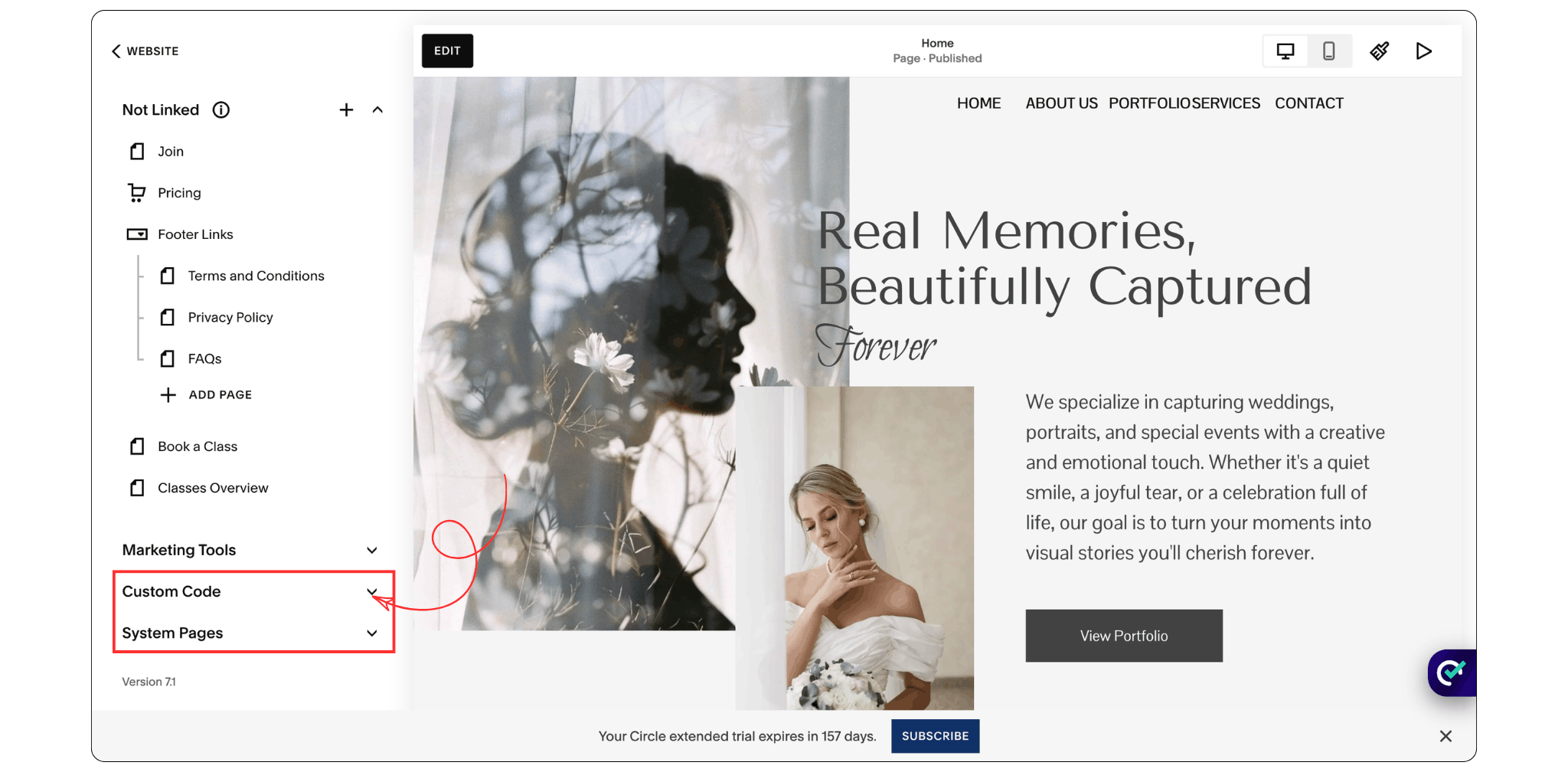
Log in to your Squarespace website.
Navigate to: Website → Website Tools → Custom CSS
This is where you'll add the CSS code that controls the appearance of your links.
Step 2: Remove Underlines From All Links
Depending on where you'd like to remove link underlines, there are a few different CSS options available. You can remove underlines across your entire website, target only your header and footer links, or apply the change to a specific section. Choose the option that best fits your needs and paste the corresponding code into your Squarespace Custom CSS panel.
Then continue with:
Version 1: Remove Underlines From All Links on Your Squarespace Website
a {
text-decoration: none !important;
}
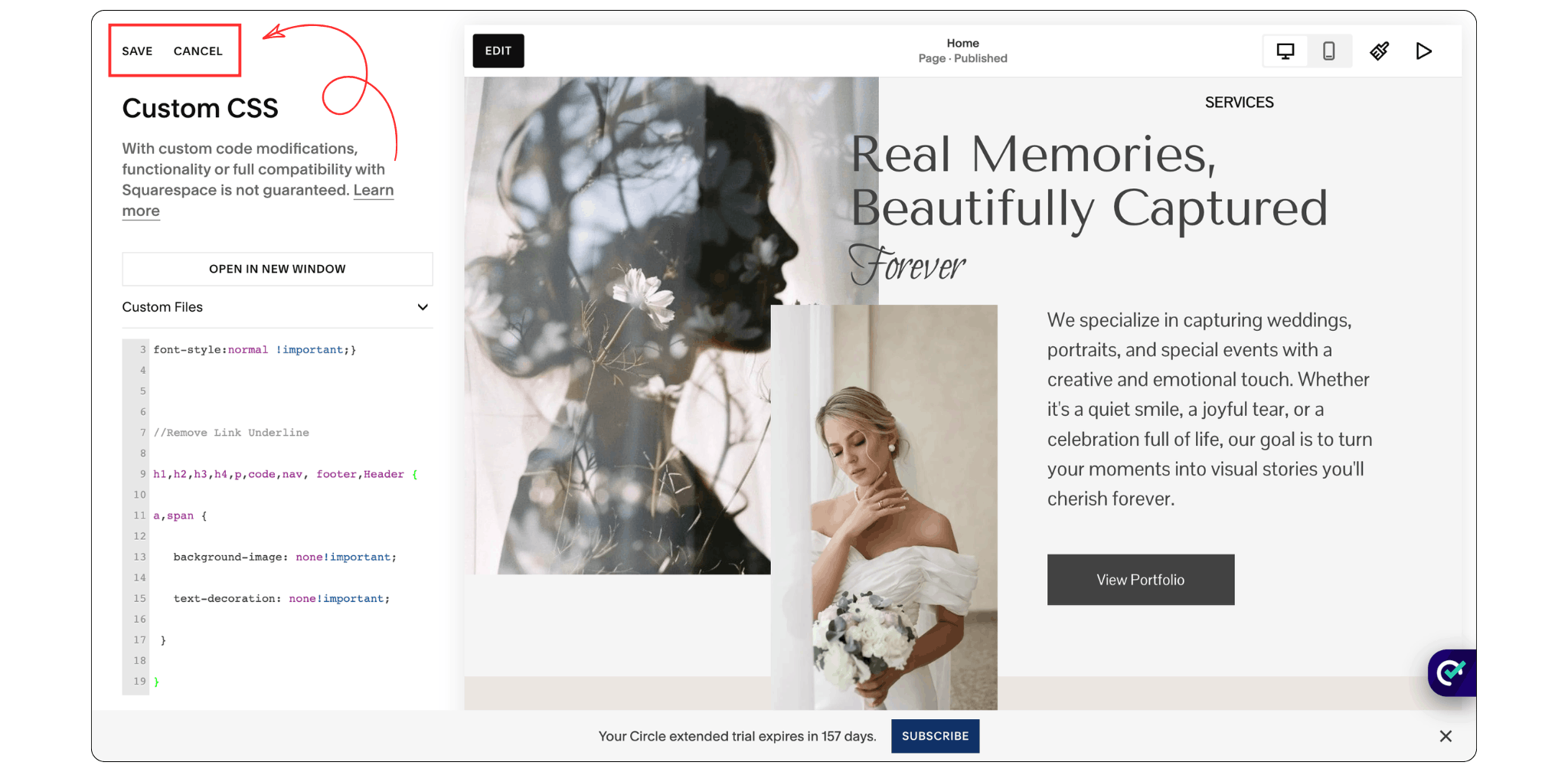
Version 2: Remove Underlines From Header and Footer Links Only
//Remove Link Underline
h1,h2,h3,h4,p,code,nav, footer,Header {
a,span {
background-image: none!important;
text-decoration: none!important;
}
}
Version 3: Remove Underlines From Links in a Specific Section
#block-yui_3_17_2_1_1740984452709_7770 a {
text-decoration: none !important;
}
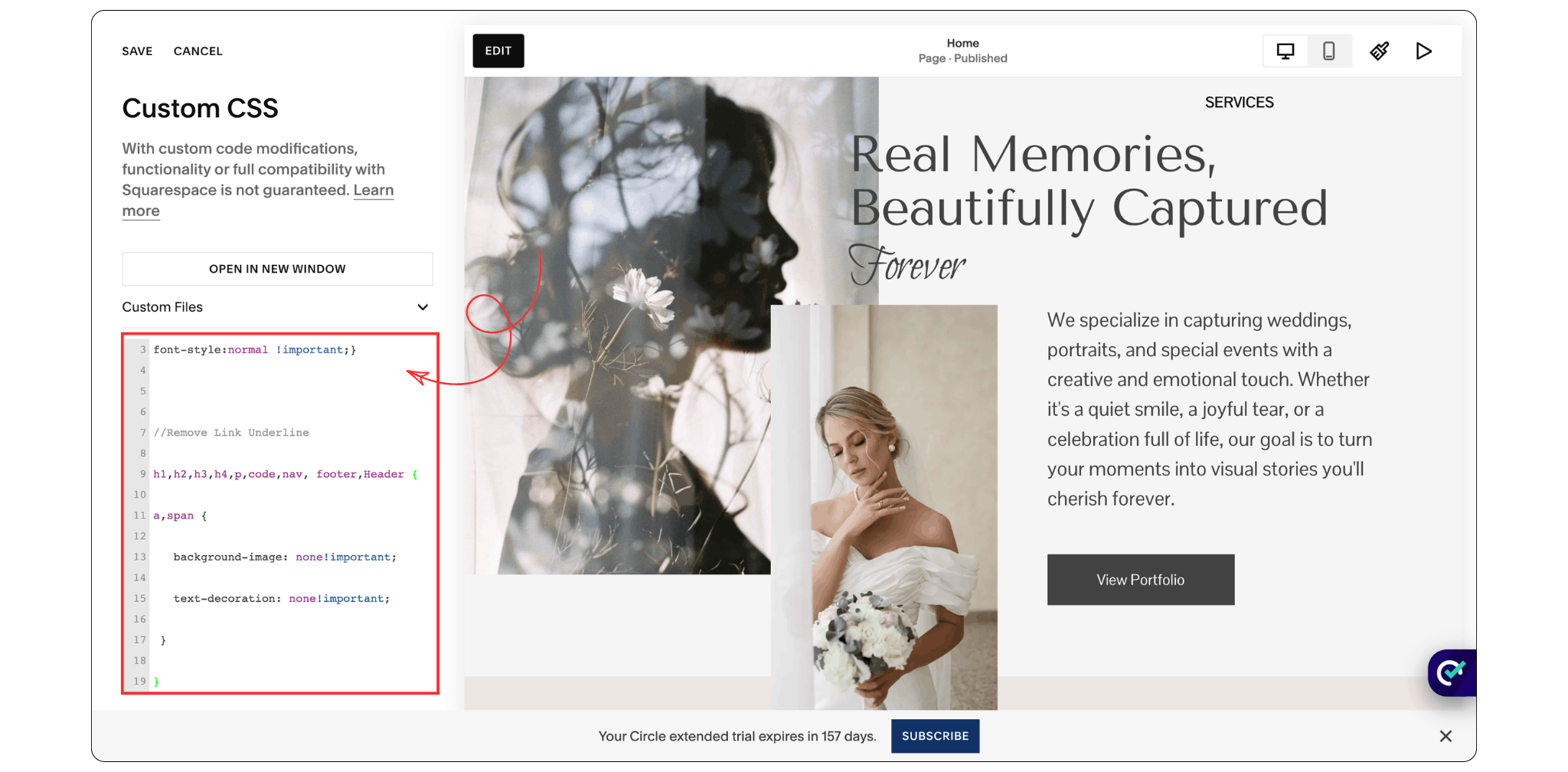
Step 3: Save and Refresh Your Website
Once you've added your preferred CSS code, click Save in the Custom CSS panel and refresh your website. The underlines should now be removed from the links you targeted. If you don't see the changes immediately, clear your browser cache or open your website in an incognito window.
Things to Consider Before Removing Link Underlines
Before removing underlines completely, keep these best practices in mind:
Make links visually distinct from regular text.
Use a different color for links.
Consider adding hover effects.
Test your design on desktop and mobile devices.
Ensure visitors can easily identify clickable content.
A clean design is important, but usability should always come first.
Frequently Asked Questions
Can I remove underlines from links without using CSS?
No. Squarespace does not currently provide a built-in setting for removing link underlines globally, so custom CSS is required.
Will removing link underlines affect SEO?
No. Removing underlines will not directly affect your search engine rankings. However, links should remain easy to identify to maintain a good user experience.
Can I remove underlines from only one page?
Yes. By targeting a specific page or section ID, you can remove underlines only where needed instead of applying the change site-wide.
Can I add a hover effect instead of an underline?
Absolutely. Many Squarespace designers replace underlines with color changes, opacity effects, or subtle animations when users hover over links.
Final Thoughts
Learning how to remove underlines from links in Squarespace is a simple customization that can make your website feel cleaner and more aligned with your brand.
Whether you want to remove underlines across your entire website, target specific sections, or update only your header and footer links, a few lines of CSS give you complete control over your link styling.
Just remember that visitors should always be able to recognize clickable elements, even without underlines.
