
How to Transfer Ownership of Squarespace Site in 2026
“Okay, I’m going to transfer the ownership of your website to you now.”
That’s something I say to almost every client once their website project is complete.
Whenever I build a new Squarespace website, I usually start it inside my own account first. This allows my clients to benefit from my Squarespace Circle discounts and development setup. But once the project is finished, I always make sure my clients fully own and control their website.
Thankfully, Squarespace makes the entire process very simple.
In this guide, I’ll walk you through exactly how to transfer ownership of squarespace site accounts safely and properly, even if you’ve never done it before.
Whether you are:
Building websites for clients
Moving websites between accounts
Managing multiple Squarespace websites
Or learning how contributor permissions work
this tutorial will help you complete the process without confusion.
Why Website Ownership Transfers Matter
A proper transfer ownership of website process is important for both designers and business owners.
When website ownership is transferred correctly, the new owner receives complete control over:
Billing
Domains
Website settings
Connected services
Contributor access
Website management
A smooth transfer ownership of website setup also prevents common problems like:
Payment issues
Lost access
Domain confusion
Broken integrations
Incorrect permissions
That’s why website ownership should always be transferred carefully after a project is completed.
Before You Transfer Ownership of Squarespace Site
Before starting the moving ownership of squarespace site process, there’s one important thing you need to know:
The future owner must first be added as a contributor or administrator on the website.
Squarespace only allows ownership transfers between existing contributors.
So the process works in two simple stages:
Add the future owner as a contributor
Transfer the website ownership through the Permissions panel
If the person already has contributor access, you can skip directly to the ownership transfer steps below.
Step 1: Sign In to Your Squarespace Account
Start by signing into your Squarespace account using your email address and password.
Once logged in, open the website you want to transfer.
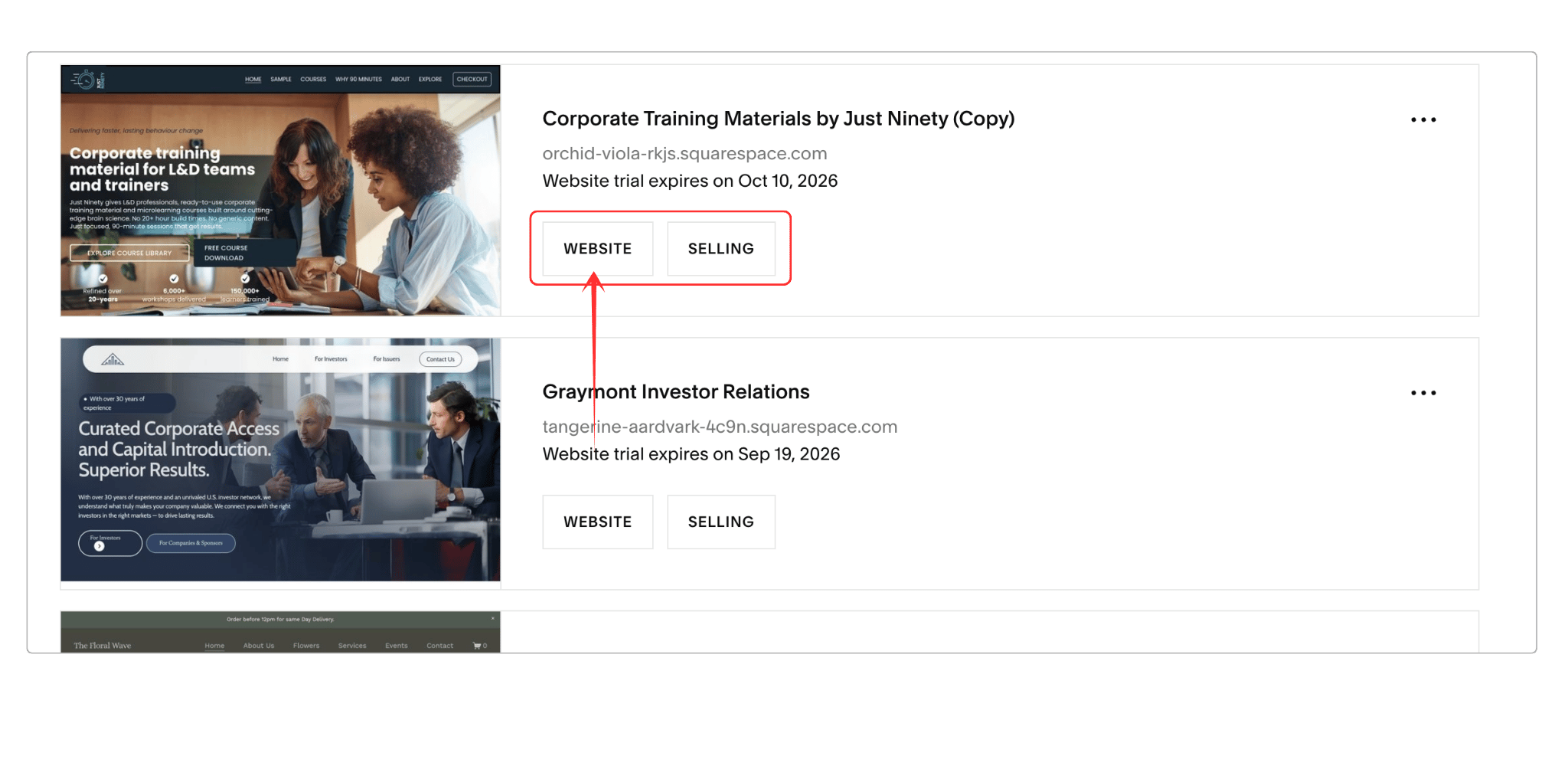
Step 2: Click “Settings”
Inside your website dashboard, look at the left-side navigation panel. Click the Home Menu to access your website controls and settings. Inside the Home Menu, find and click Settings.
This will open your website settings dashboard.

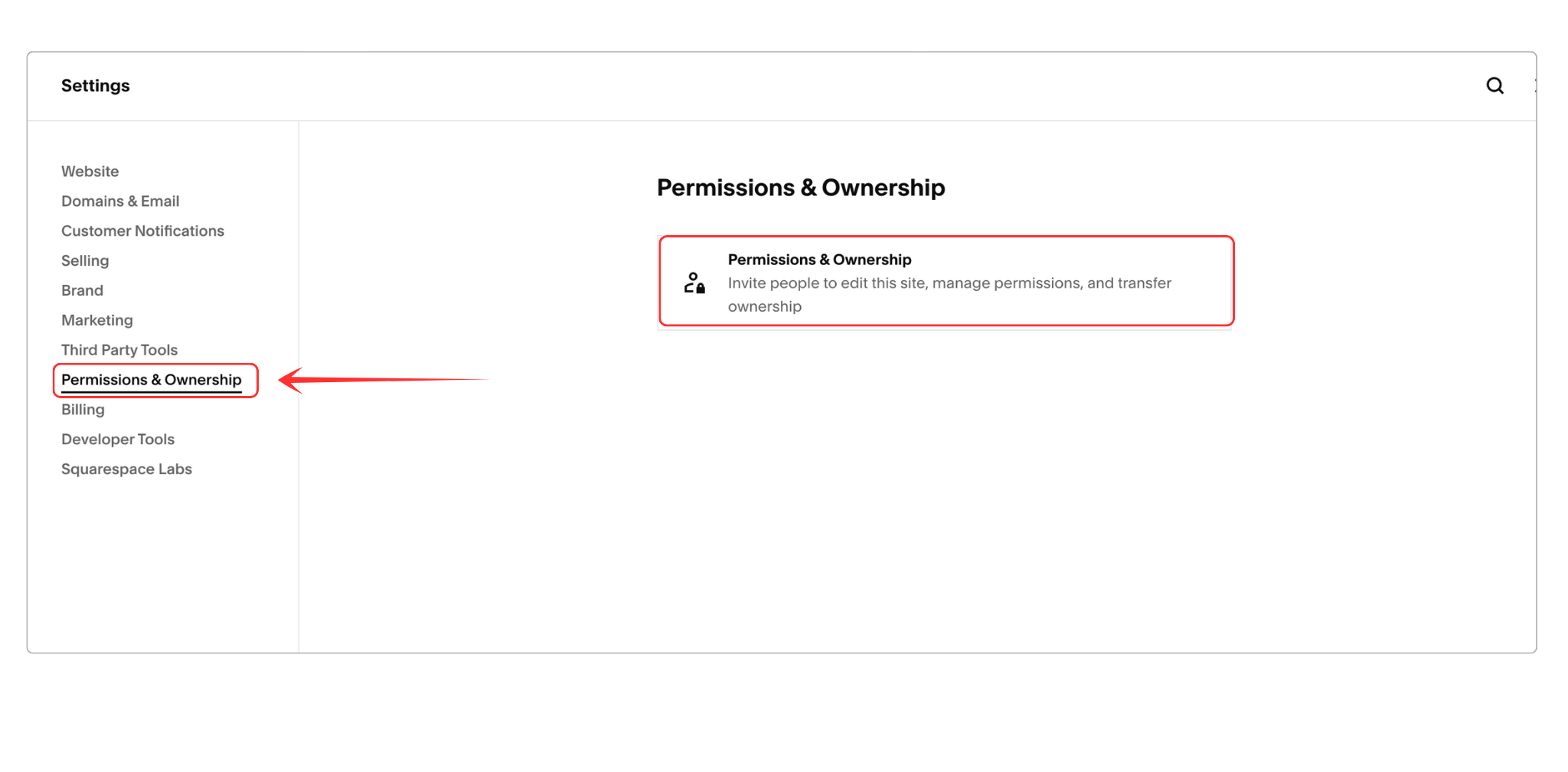
Step 3: Open the Permissions Section
Inside Settings, click Permissions.
This area controls all contributor access and Squarespace permissions for your website.
You can also manage admin access and begin the transfer ownership of squarespace site process here.
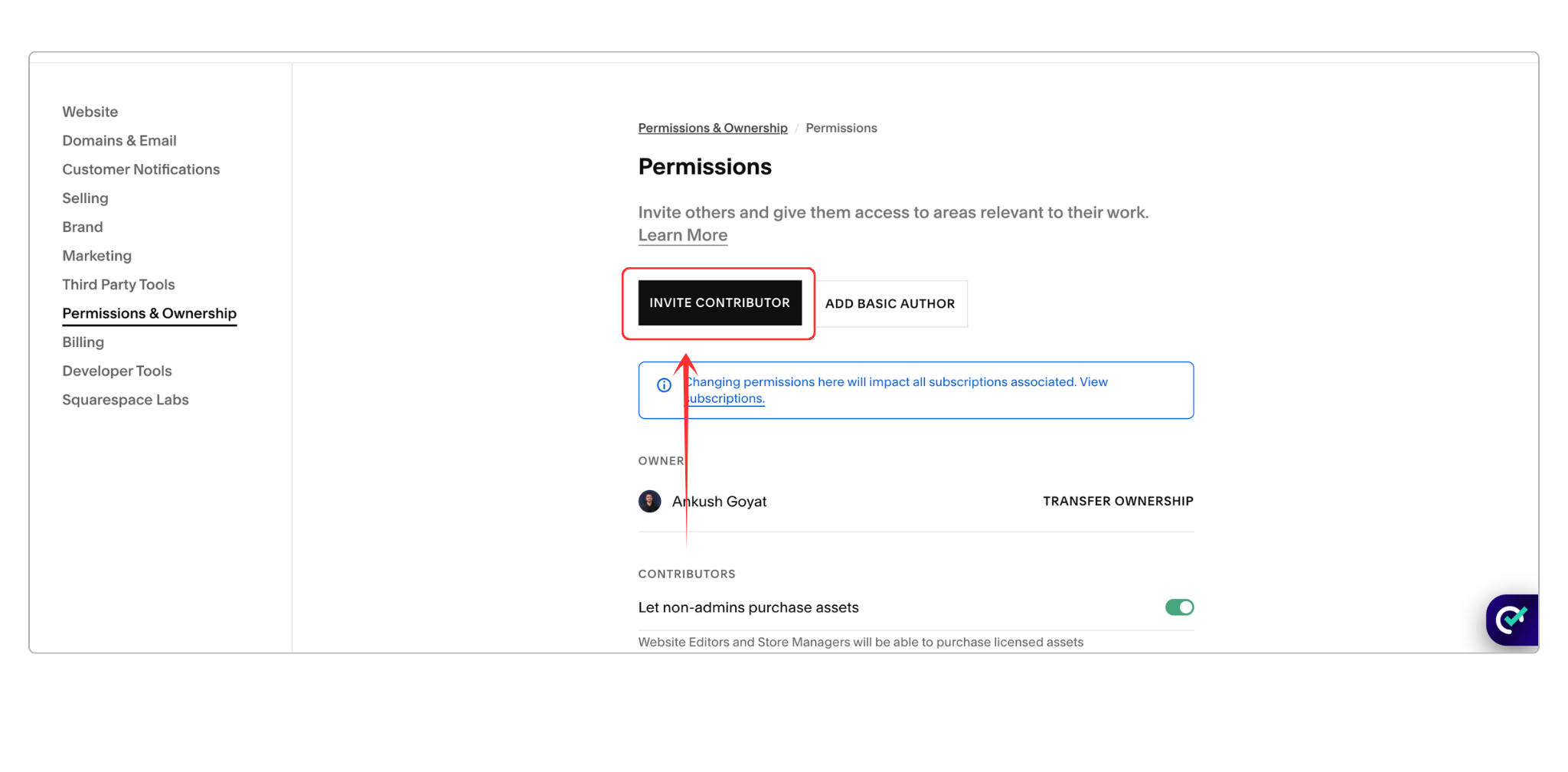
Step 4: Click “Invite Contributor”
Inside the Permissions section, click the Invite Contributor button.
A pop-up window will appear.
This is where you’ll add the future website owner before starting the ownership transfer.
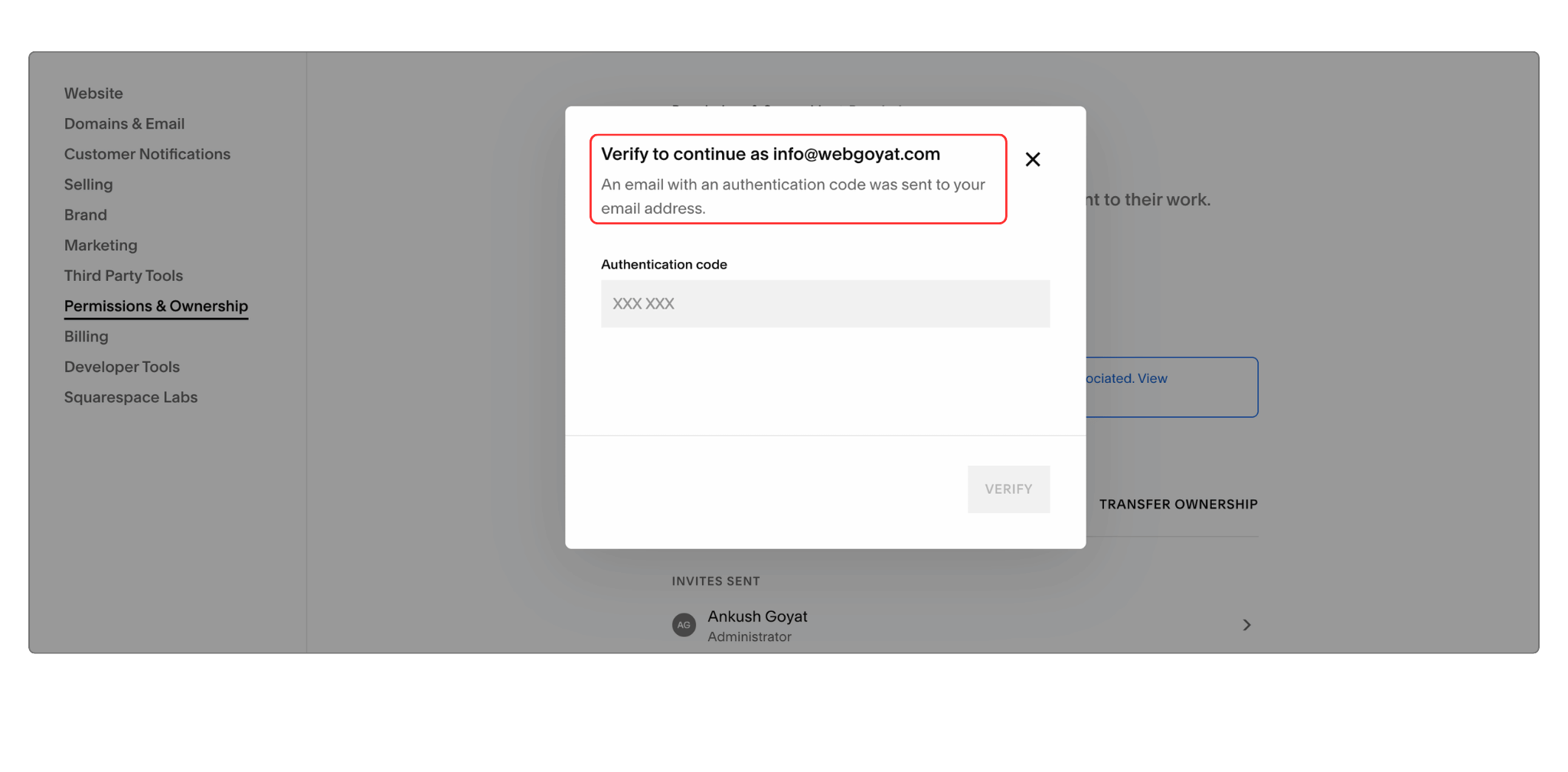
Step 5: Verify Your Identity
For security purposes, Squarespace may send a verification code to your email address before allowing contributor or permission changes.
This security step helps ensure that only the website administrator can change website access settings.
Check your inbox, copy the verification code, and enter it into Squarespace when prompted.
Once verified, continue to the next step.
Step 6: Enter the Contributor’s Details
Now enter the future website owner’s:
Full name
Email address
Make sure the email address is connected to their Squarespace account.
If they don’t already have a Squarespace account, they’ll be asked to create one after accepting the contributor invitation.
Before continuing, double-check the spelling and email address carefully to avoid invitation issues later.
This step is required before transfer ownership of squarespace site accounts can be completed successfully.
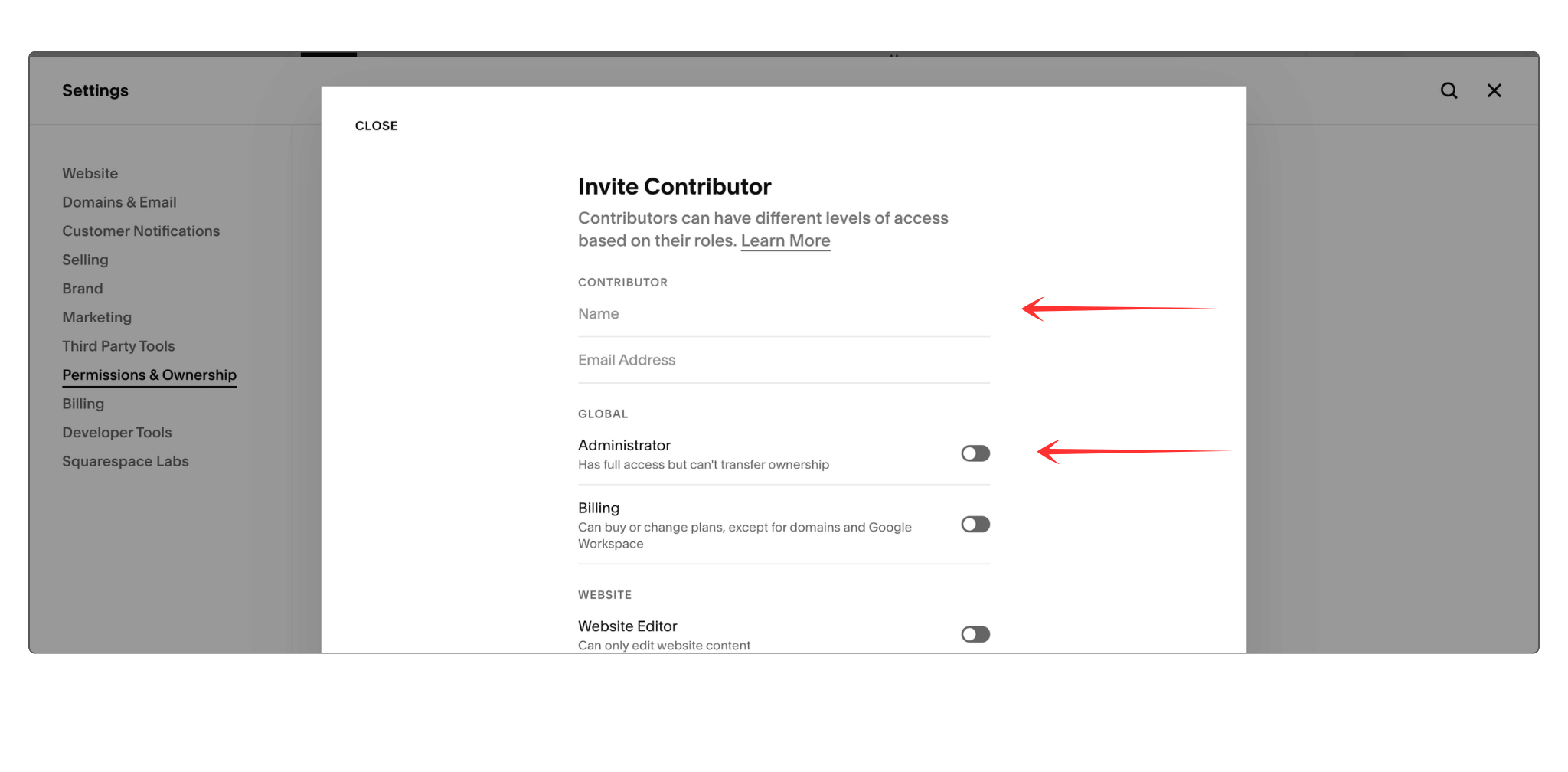
Step 7: Select the Permission Level and Send the Invitation
Now choose the contributor permission type.
For most ownership transfers, select:
Administrator
Administrator access gives the contributor full website access and allows the ownership transfer process to continue later.
Understanding Squarespace permissions is important because incorrect permission settings can create access issues later.
After selecting the permission level:
Click the Invite button
Squarespace may ask you to verify your identity again before sending the contributor invitation email.
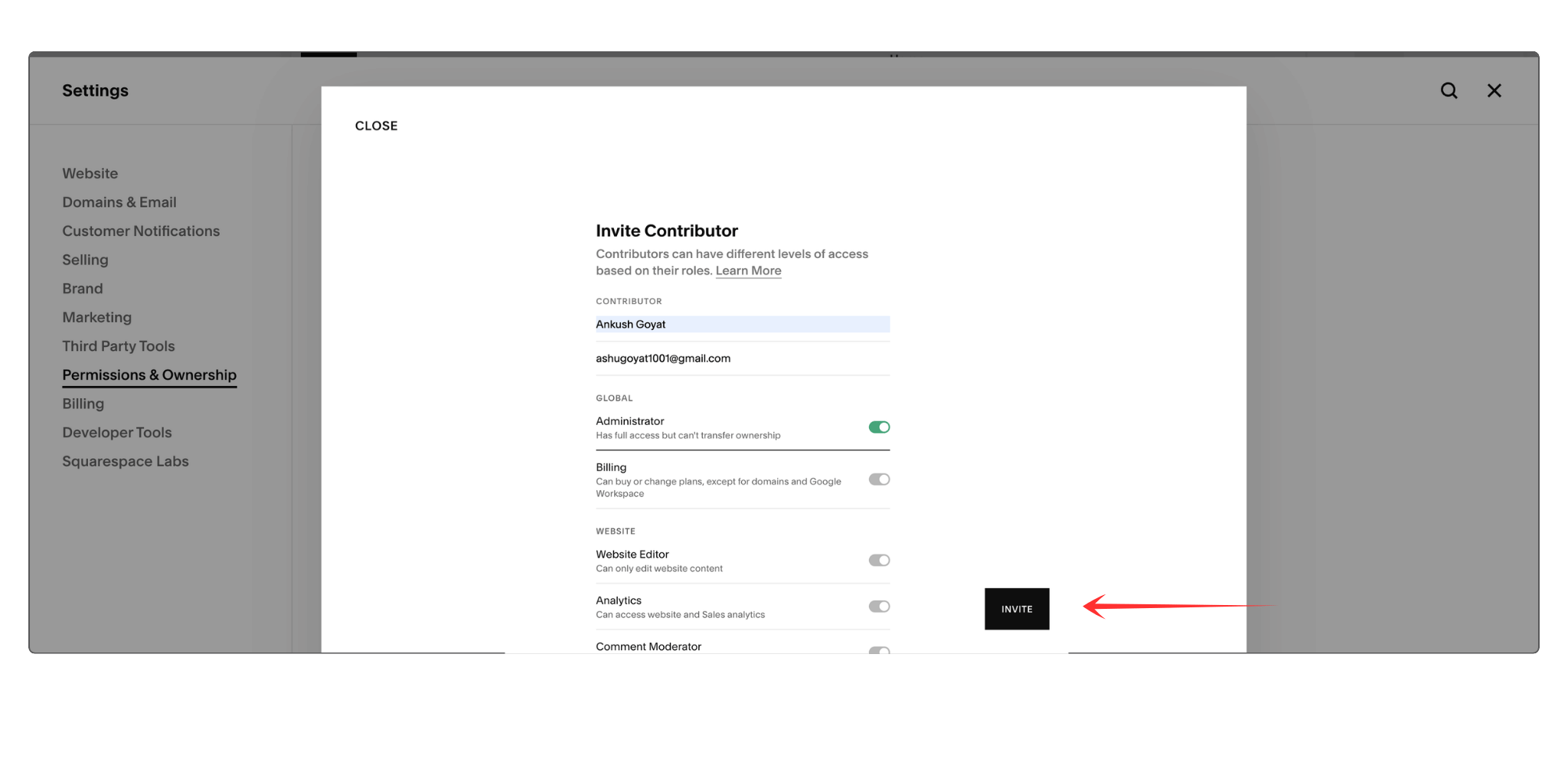
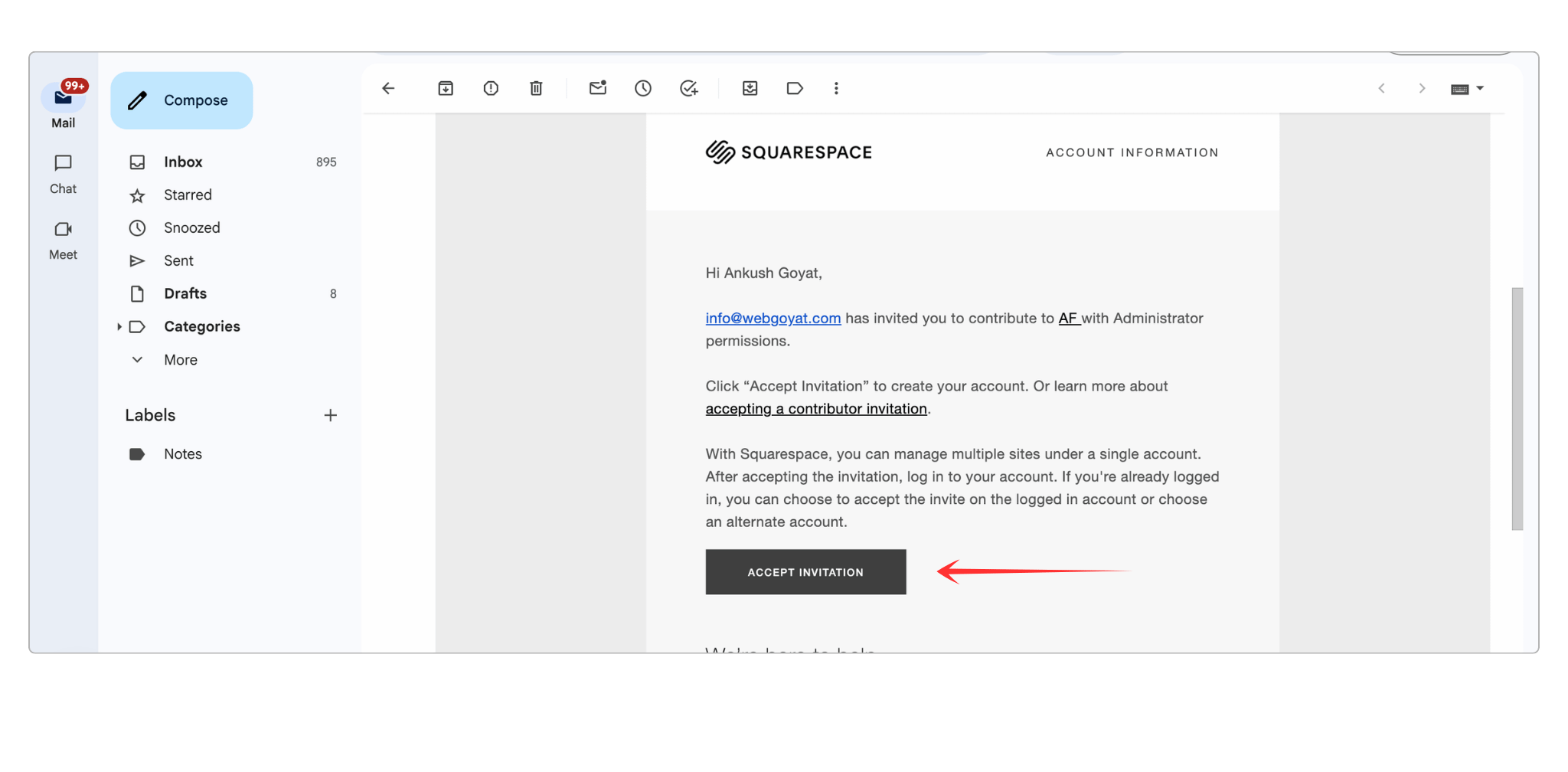
Step 8: Ask the Contributor to Accept the Invitation
The contributor will now receive an invitation email from Squarespace.
Ask them to:
Open the email
Click the invite link
Sign into their Squarespace account
Accept the contributor invitation
This step must be completed before continuing the squarespace transfer ownership process.
Step 9: Return to the Permissions Page
Once the contributor accepts the invitation, go back to:
Settings → Permissions
You should now see the contributor listed on the website.
This confirms the user has been added successfully.
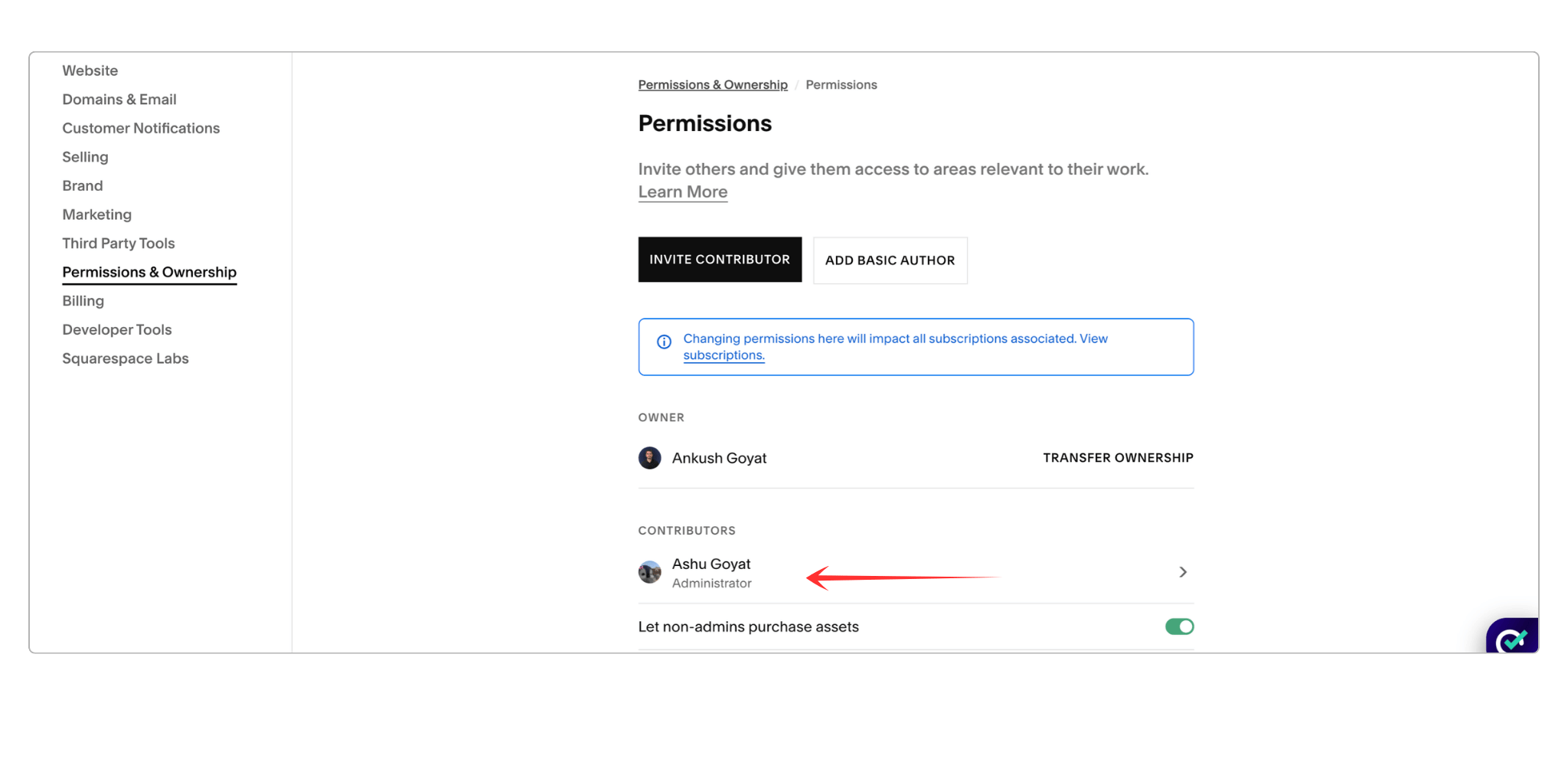
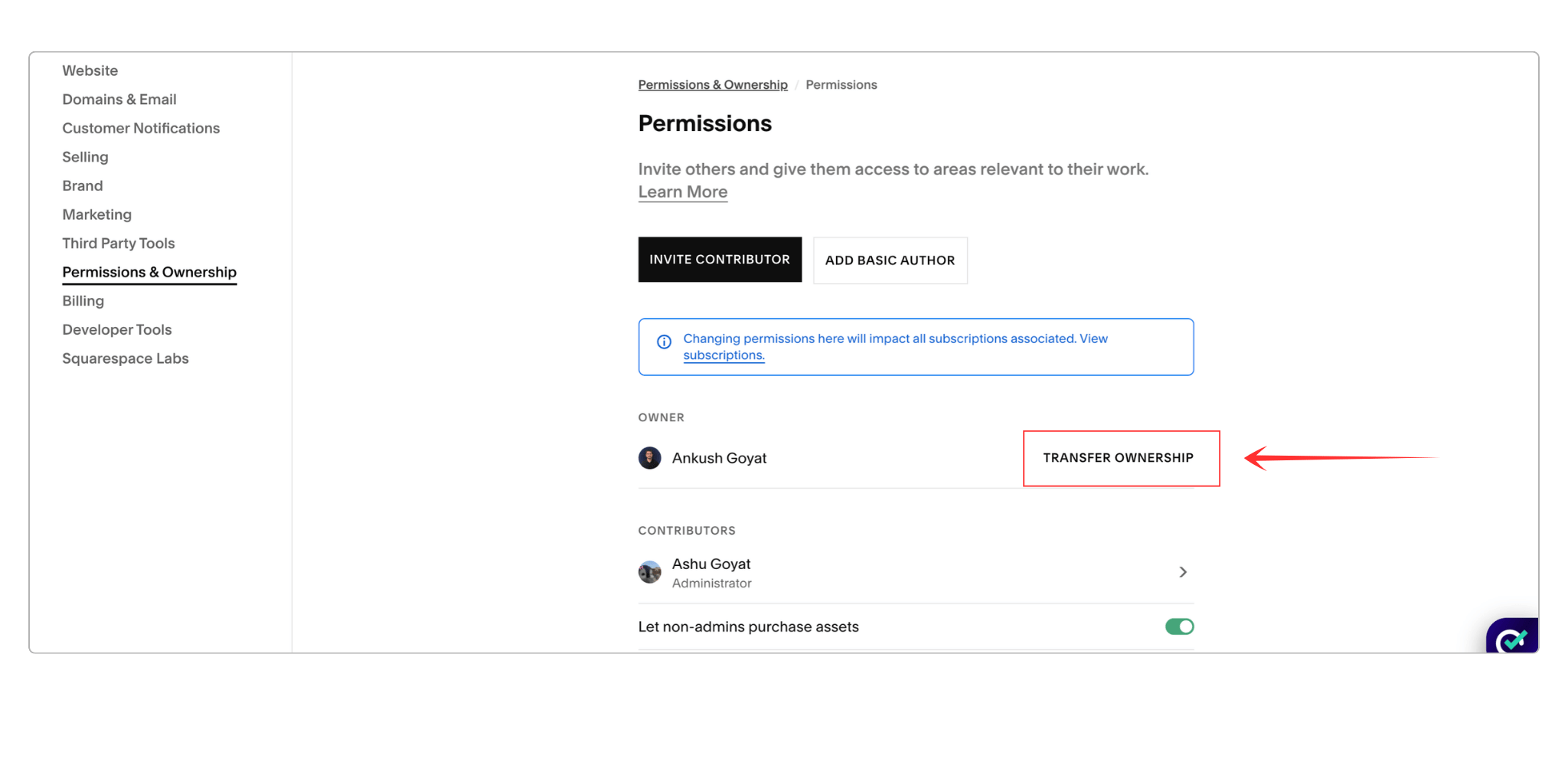
Step 10: Click “Transfer Ownership”
Inside the Permissions section, click the Transfer Ownership button.
This officially starts the transfer squarespace ownership process.
A login confirmation window may appear.
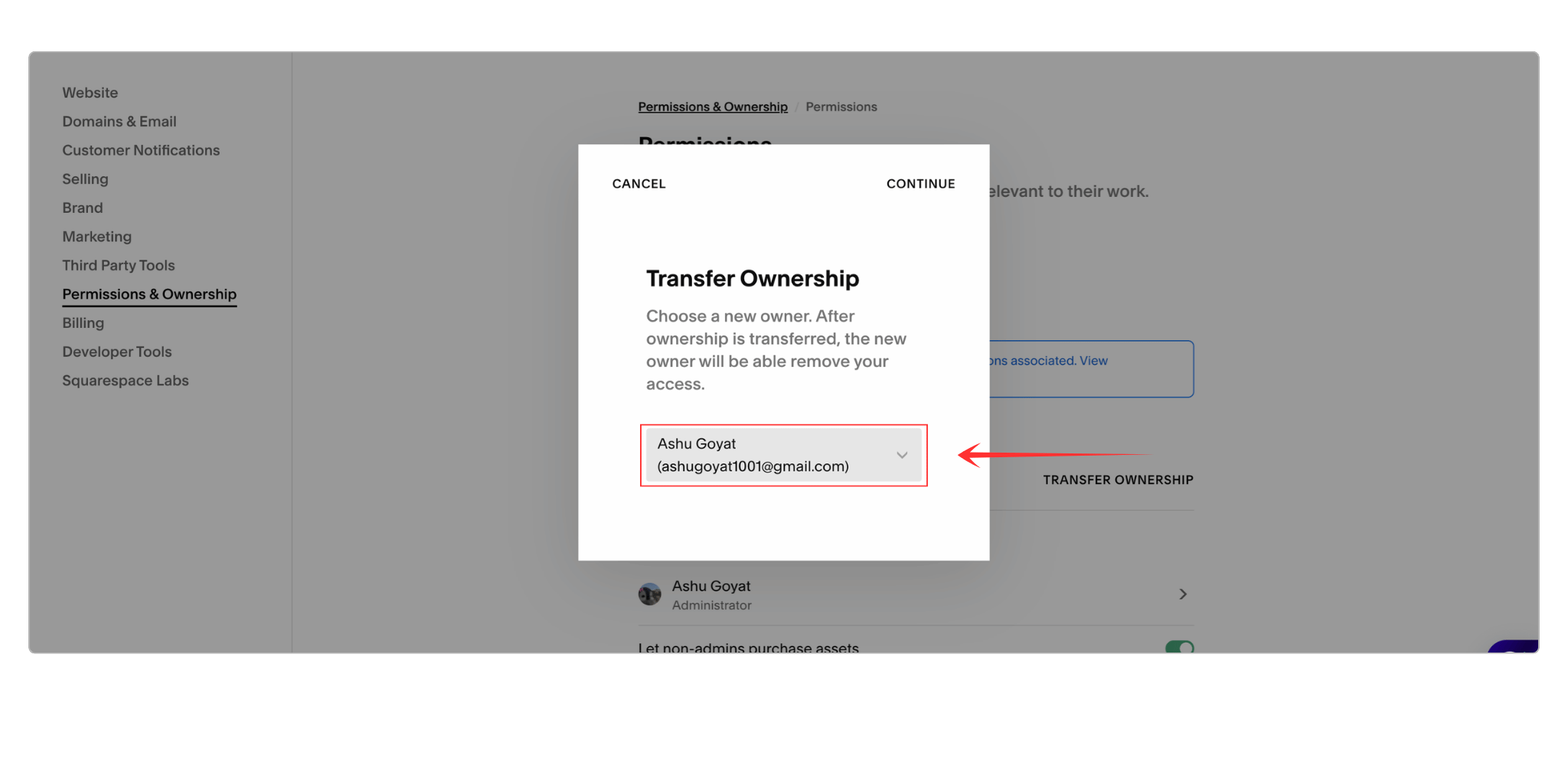
Step 11: Select the New Owner and Confirm the Transfer
A dropdown menu will now appear showing all eligible contributors connected to the website.
Select the contributor account you want to transfer the website to.
This is part of the transfer ownership of squarespace site to another account process.
After selecting the new owner:
Click Continue
Review the ownership details carefully
Then click Confirm
You have now successfully completed the transfer squarespace ownership process.
Step 12: Refresh the Permissions Page
Refresh the Permissions page to confirm the ownership update.
You should now see the new account listed as the website owner.
This confirms the transfer ownership of squarespace site to another account process was completed successfully.
Final Thoughts
At first, website ownership transfers may sound complicated.
But once you understand the process, learning how to transfer ownership of squarespace site accounts becomes surprisingly straightforward.
Whether you’re a designer building websites for clients or a business owner taking control of your website for the first time, understanding permissions and ownership settings is incredibly valuable.
And once the transfer is complete, the new owner receives full control over:
Website management
Billing
Domains
Contributor access
Connected services
Website settings
Exactly the way it should be.
FAQs
Can I build a Squarespace website and transfer it to someone else?
Yes. Many designers build websites inside their own account first and later transfer ownership to clients after the website is complete.
How do I copy a Squarespace website from one account to another?
You can duplicate a website and then move it to another Squarespace account by first adding the user as a contributor.
How much does Squarespace charge to transfer a domain?
Squarespace itself does not charge a separate transfer fee, but ICANN requires a one-year domain renewal during the transfer process.
Who is better, GoDaddy or Squarespace?
For website design flexibility and user experience, Squarespace is generally the better option. GoDaddy is cheaper, but Squarespace offers more professional design features.
How do I transfer page ownership to another person?
Squarespace does not allow you to transfer ownership of a single page; website ownership applies to the entire site. However, you can manage access at the page level or transfer the whole site
Can You Transfer Multiple Squarespace Websites?
Yes , many website designers and agencies regularly transfer websites to clients after projects are completed.
Once you understand how transfer squarespace ownership works, managing multiple client projects becomes much easier and more organized.
Was This Helpful?
I hope this guide helped make the entire process easier to understand.
Many people think website ownership transfers are technical or complicated, but Squarespace has actually made the process very beginner-friendly.
If you’re a website designer, understanding how website ownership transfers work properly will help create a smoother client experience.
And if you’re a business owner receiving your website for the first time — congratulations — your website is now fully yours.

Need Help Managing or Transferring Your Squarespace Website?
Whether you need help managing Squarespace permissions or handling the transfer ownership of squarespace site process for a client, having the right setup can save you time and avoid confusion later.
I’m Ankush, a Squarespace web designer and founder of Webgoyat. I help businesses and creators build professional Squarespace websites and manage website transfers, client handovers, and website setup.
If you’d like help with your website, you can email me at info@webgoyat.com or book a free 15-minute consultation call through my website.
