
Squarespace ID Finder: Easy Chrome Extension to Find Block & Section IDs
If you work on Squarespace websites, you’ve probably heard people talk about “IDs” like block ID or section ID. At first, it sounds technical , but it’s actually very simple.
The Squarespace ID Finder Chrome Extension helps you quickly see these IDs without any coding or complicated steps. In this guide, I’ll show you how it works in the easiest way possible.
What is Squarespace ID Finder?
The Squarespace ID Finder is a simple Chrome extension that shows hidden IDs inside your Squarespace website. These IDs are used for things like:
Styling a specific button
Targeting a section
Adding custom design changes
Instead of searching manually, the extension shows everything in one click. Think of it like turning on labels on your website.
Why Use Squarespace ID Finder Chrome Extension?
Normally, finding IDs can feel confusing. But with this extension:
You don’t need coding knowledge
You don’t need to inspect anything
You just click and see IDs instantly
Real example:
Imagine you want to change only the “Contact Us” button color.
Without the tool → you might get confused
With the tool → you instantly see the exact ID of that button
Simple and fast.
How to Use Squarespace ID Finder Extension
Using it is very easy:
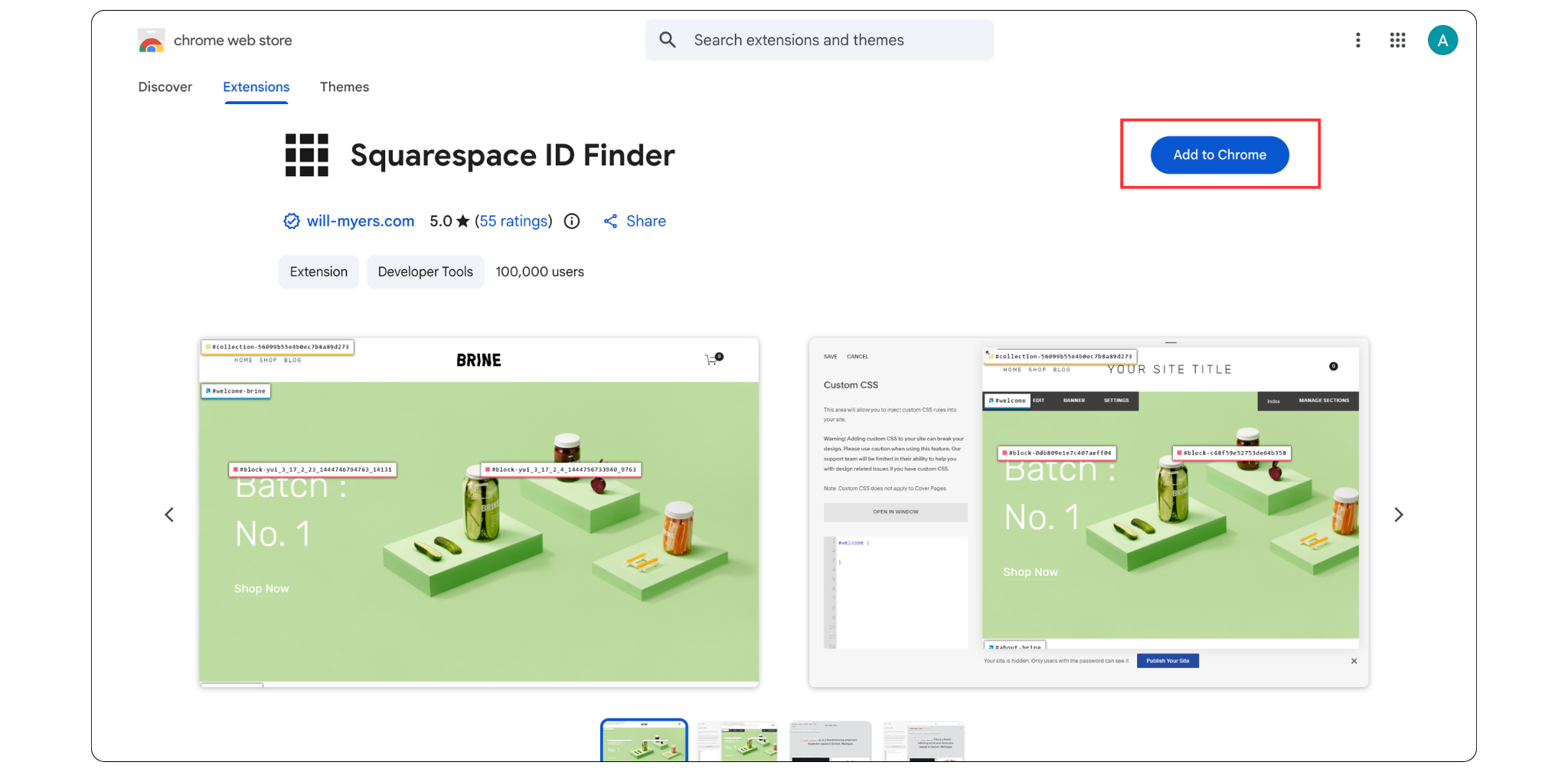
Step 1: Install the extension
Search “Squarespace ID Finder Chrome Extension” on Chrome Web Store and install it.
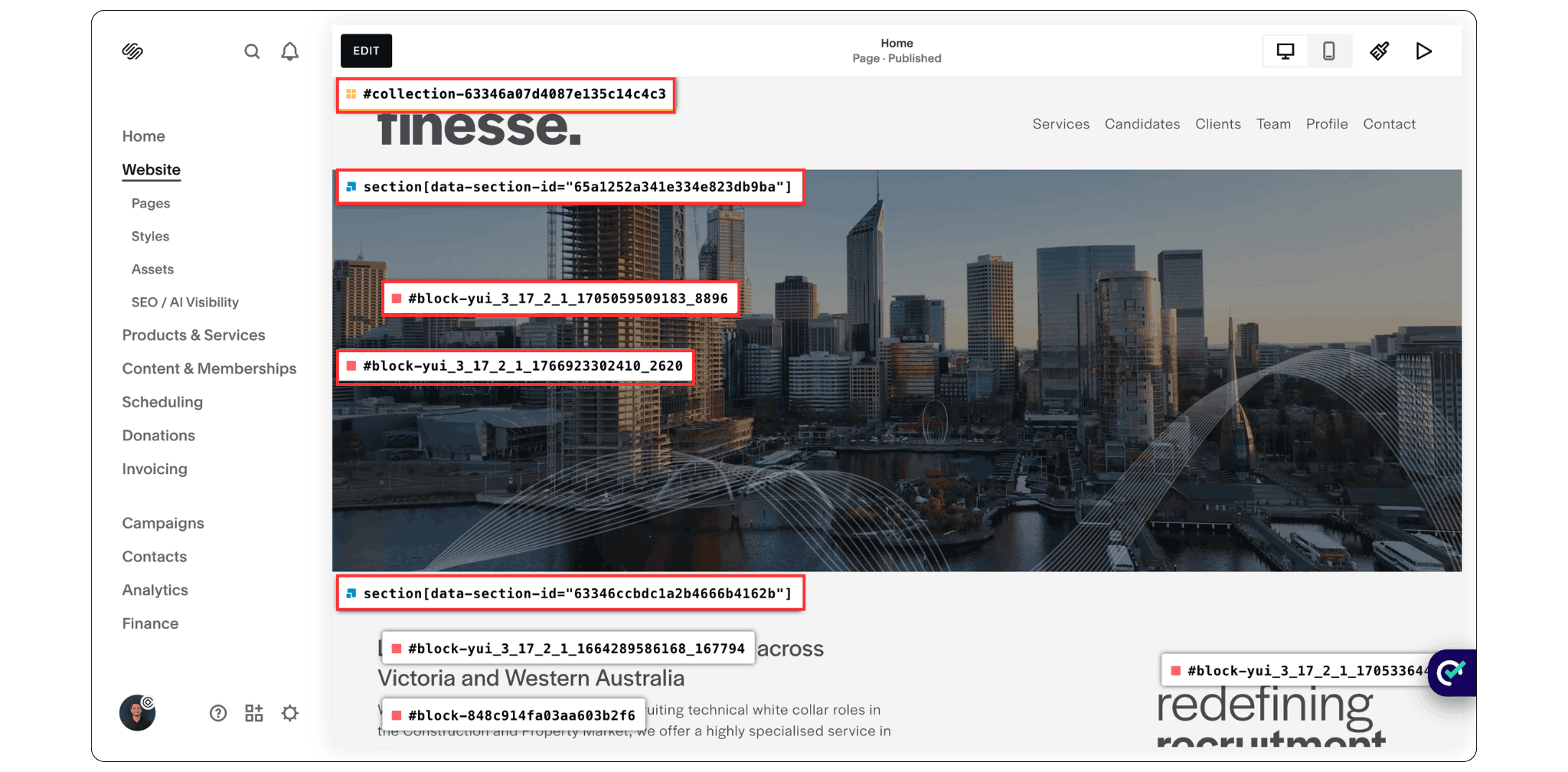
Step 2: Open your Squarespace website and click the extension icon
Go to your live website page, then click the extension icon in your Chrome browser , it will instantly highlight all the IDs on your page. it will show all the important IDs on your page, including block IDs (buttons, images, text), section IDs (entire page sections), and page structure labels , everything becomes clearly visible.
That’s it.
No coding. No confusion.
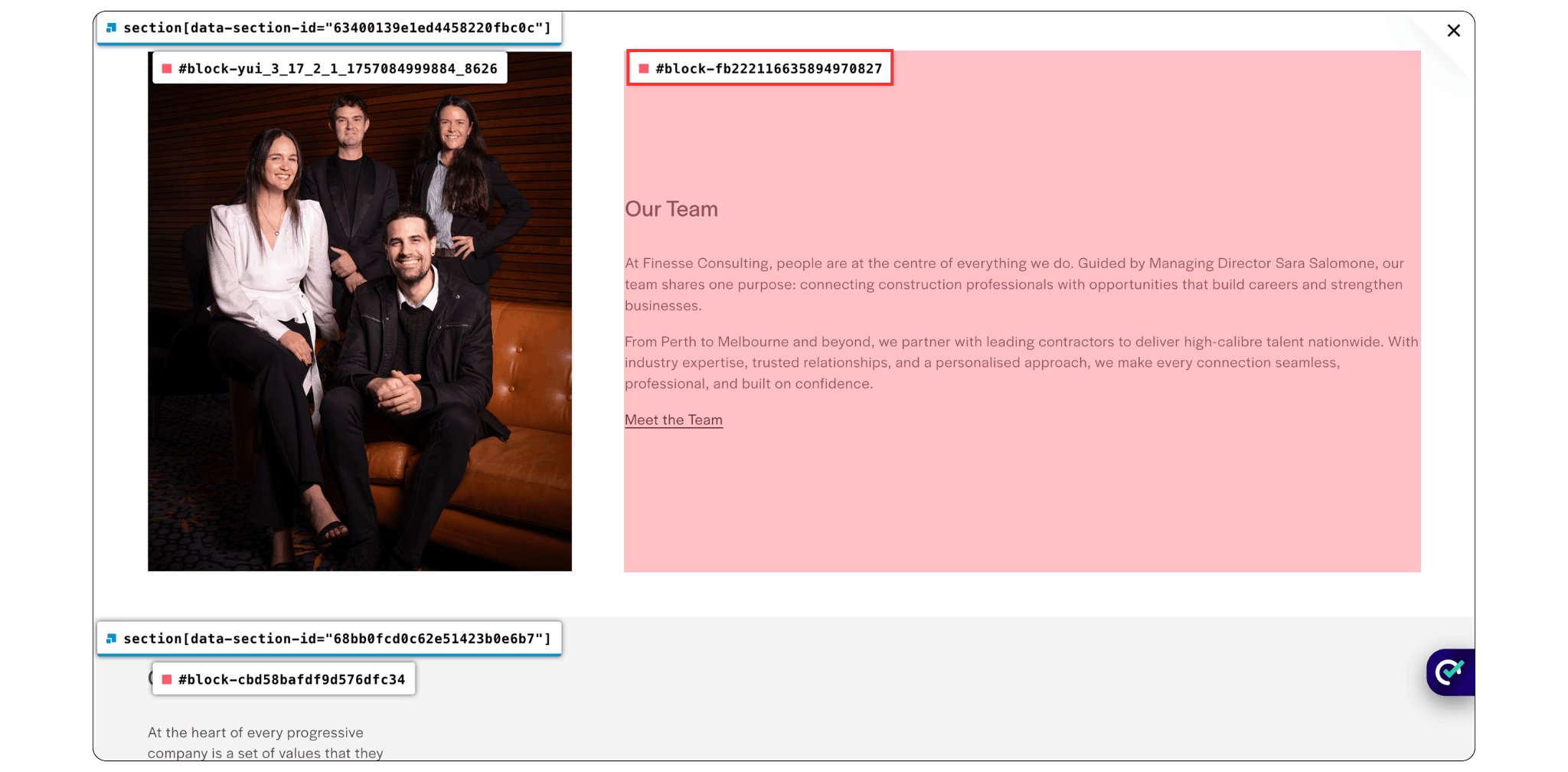
Step 3: Copy the ID and use it in your CSS
After you see the ID, simply copy it and paste it into your CSS to target and style that specific element.
Frequently asked Questions
Where is the Squarespace ID finder?
The Squarespace ID Finder is not inside Squarespace itself. It is a Chrome extension that you install in your browser. You can find it in the Google Chrome Web Store by searching for “Squarespace ID Finder.” Once installed, you simply open your Squarespace website and click the extension icon. It will then show you all the block, section, and page IDs directly on your site.
Is Squarespace ID Finder Safe?
Yes, the Squarespace ID Finder is widely considered safe. Developed by trusted Squarespace experts (such as Will Myers), the browser extension is a highly rated and secure tool utilized by tens of thousands of designers to easily locate CSS identifiers on their websites
Just make sure you install it from the official Chrome Web Store.
Who Should Use This Tool?
This tool is perfect for:
Squarespace designers
Beginners learning customization
Freelancers building client websites
Anyone using custom CSS in Squarespace
If you are building websites regularly, this tool saves a lot of time.
Final Thoughts: Squarespace ID Finder Made Simple
The Squarespace ID Finder Chrome Extension might feel like a small tool, but it can make a big difference when you’re working on your website.
Most people don’t realize this, but small details like IDs are what allow you to customize specific parts of your Squarespace site — without affecting everything else. That means better control, cleaner design changes, and less frustration when something “doesn’t work.”
And honestly, this is one of those tools people only appreciate once they start using it.
At first, finding IDs can feel confusing or technical… but with the extension, everything becomes visual and simple. You don’t need to guess, inspect, or overthink anything , you just see it.
It’s a small upgrade in your workflow, but it saves a lot of time in real projects.

Need Help With Your Squarespace Website?
If you want help improving your Squarespace website, fixing design issues, or building a more modern and professional layout, I can help you with that.
I’m Ankush, a Squarespace web designer and founder of Webgoyat. I help businesses and creators build clean, conversion-focused Squarespace websites that actually work.
If you’d like help, you can reach me at info@webgoyat.com or book a free 15-minute consultation through my website.
